

Trying to figure out how to hide ip address isn’t just a privacy question, it’s often about sidestepping blocks, avoiding tracking, or simply seeing a website as if you’re somewhere else. Maybe you want to mask your IP to test a site, collect public data, or keep search engines from connecting your actions to a single location. The problem: there are dozens of ways to hide IP address, but not all of them actually break the trail or hold up under pressure.
Most quick fixes, like free browser plugins or basic proxy lists, fall apart as soon as you need stable connections, multiple locations, or any kind of session reliability. You might get a new IP on paper, but the traffic pattern, speed drops, or outright connection failures quickly give you away. Worse, some options leave you exposed to DNS leaks, account locks, or even legal headaches if you pick the wrong tool for your use case.
The real question is less about how to mask your IP address in theory, and more about which method actually fits your workflow without creating bigger problems. There’s a world of difference between swapping your IP for a minute and keeping it stable for a week, or between one-off browsing and high-volume, automated tasks. What works for a simple location check can break completely when you try to run web scraping or long-running browser sessions.
So before you commit to a method, it’s worth knowing what each option really does, and where the risks start to pile up. Here’s what you need to know.
What Actually Happens When You Hide Your IP Address
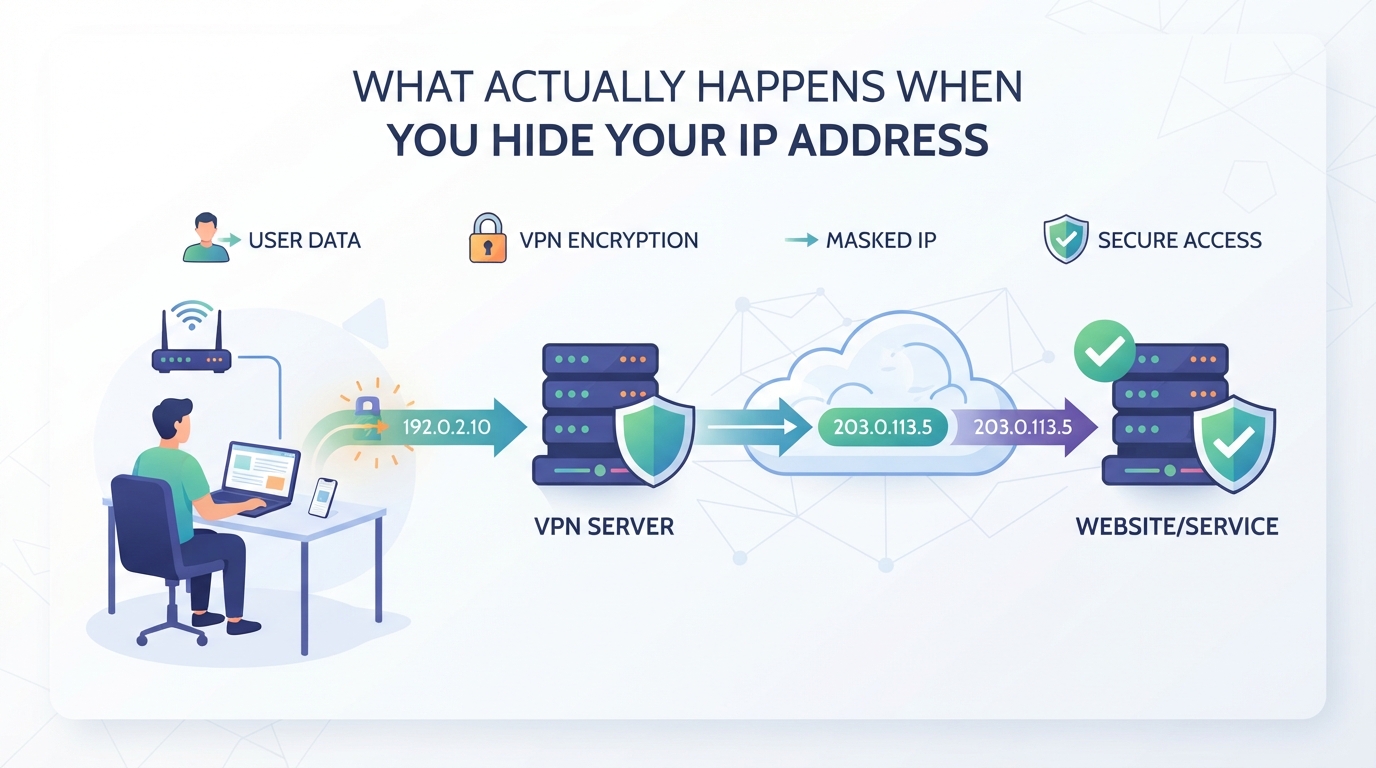
Trying to hide your IP address sounds simple, but what really changes when you mask it? The answer depends on what websites see, what still leaks through, and which parts of your digital identity remain exposed even after you swap IPs.
What does your IP address reveal to websites and networks?
Your IP tells sites where your connection comes from and often what internet provider you use. Even if you mask your IP, some information can still leak, like browser fingerprints or login details.
| Connection | Public IP Seen by the Destination | IP-Based Location | Cookies and Logins | Browser Attributes |
|---|---|---|---|---|
| Direct connection | Direct connection’s public IP | Estimate for that IP | Still visible as applicable | Still observable as applicable |
| VPN-routed or proxy-routed request | Exit IP, if the intended route is used | Estimate for the exit IP | Not removed by IP routing alone | Not removed by IP routing alone |
Routing scope, database accuracy, and other location signals affect what a particular application observes.
Takeaway: Even with your IP hidden, websites can link visits together using cookies or your device’s unique fingerprint. Masking your IP hides your network’s address, but not your whole identity.
What changes, and what doesn’t, when you use a VPN or proxy?
For requests routed through a VPN or proxy, the destination normally sees the exit IP rather than the original connection’s public IP. This may change IP-based location estimates, but does not remove account logins, cookies, or browser attributes. A VPN’s routing scope and an application proxy’s configured coverage must be checked separately. Changing an IP does not guarantee access or anonymity.
If you want to actually stay anonymous or avoid tracking, you’ll need to think beyond just swapping IPs. The next step is figuring out which method of hiding your IP fits your real-world workflow and risk tolerance.
Which Method to Hide Your IP Address Fits Your Task
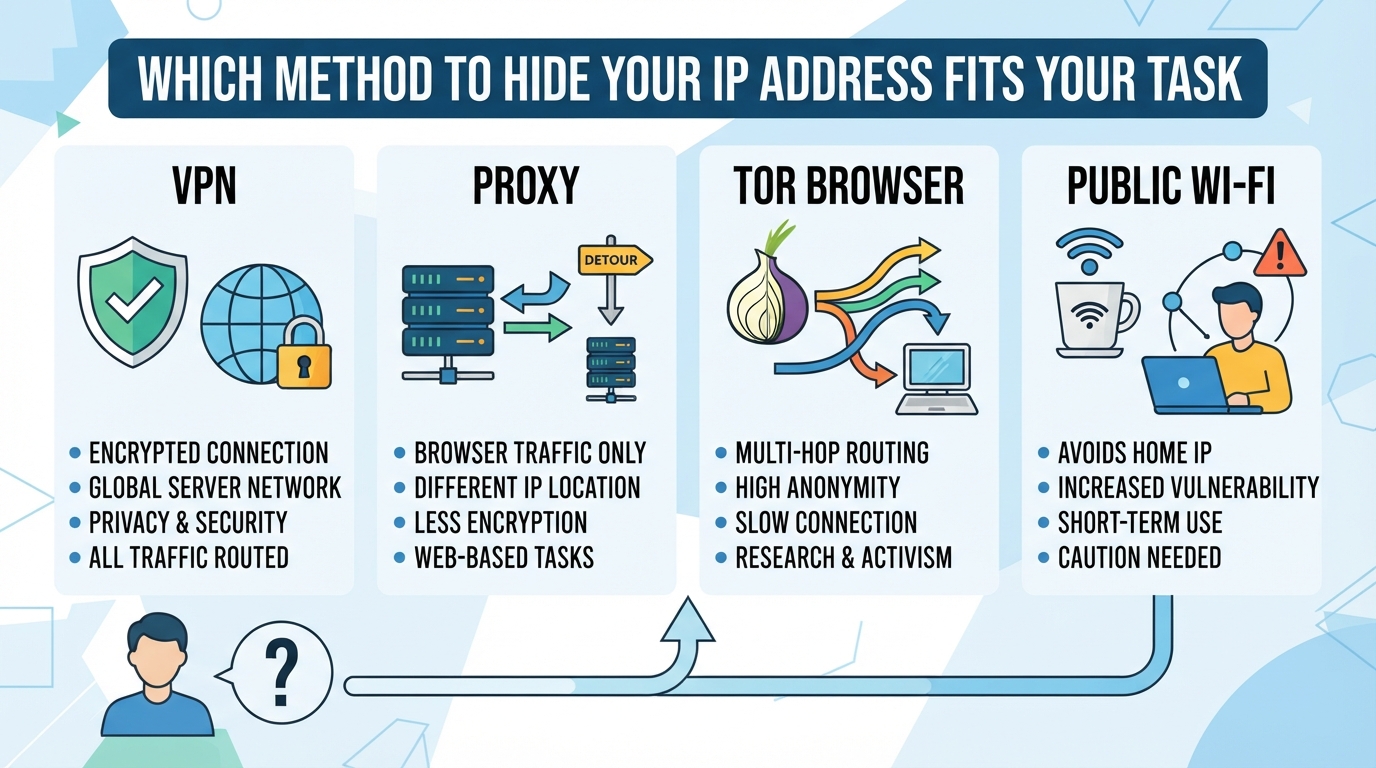
Not every way to hide your IP address works the same, or fits the same job. Swapping your IP for casual browsing is simple enough, but keeping it steady for business tasks, scraping, or account work needs a method that won’t break at scale. If you pick the wrong tool, you risk leaks, blocks, or worse. Here’s how the main options stack up.
How do proxies, VPNs, and Tor differ in hiding your IP?
Each method changes your visible IP, but the level of control, privacy, and speed varies. Below is a quick comparison:
| Method | Traffic Scope | Address Observed | Important Limitation |
|---|---|---|---|
| Proxy | Supported traffic configured to use it | Proxy exit IP | Does not automatically cover every application or add encryption |
| VPN | Traffic included by routing policy | VPN exit IP for routed traffic | Split tunneling and exclusions can leave other routes direct |
| Tor | Traffic sent through Tor | Tor exit IP for that traffic | Does not cover unrelated applications or erase account identity |
| Different Wi-Fi network | Traffic using that network | That network’s public exit IP | Changes the network, not anonymity or account identity |
These methods differ in routing scope, not just the visible exit IP. Application proxies cover supported connections sent through them. A VPN can use full or split routing, so it does not necessarily send every application through one exit. Tor covers traffic configured to use it. None of these changes alone removes cookies or account identity.
What are the risks and limits of each approach?
Each approach has limits. An untrusted intermediary can introduce logging or reliability risks, and encryption must be assessed separately from IP routing. Tor traffic, VPN exits, and proxy exits may all face service restrictions. Session stability, application support, and the actual routing configuration matter more than a blanket privacy or performance ranking.
How to Control IP Rotation, Sticky Sessions, and Fixed IPs for Real-World Privacy and Workflow Needs
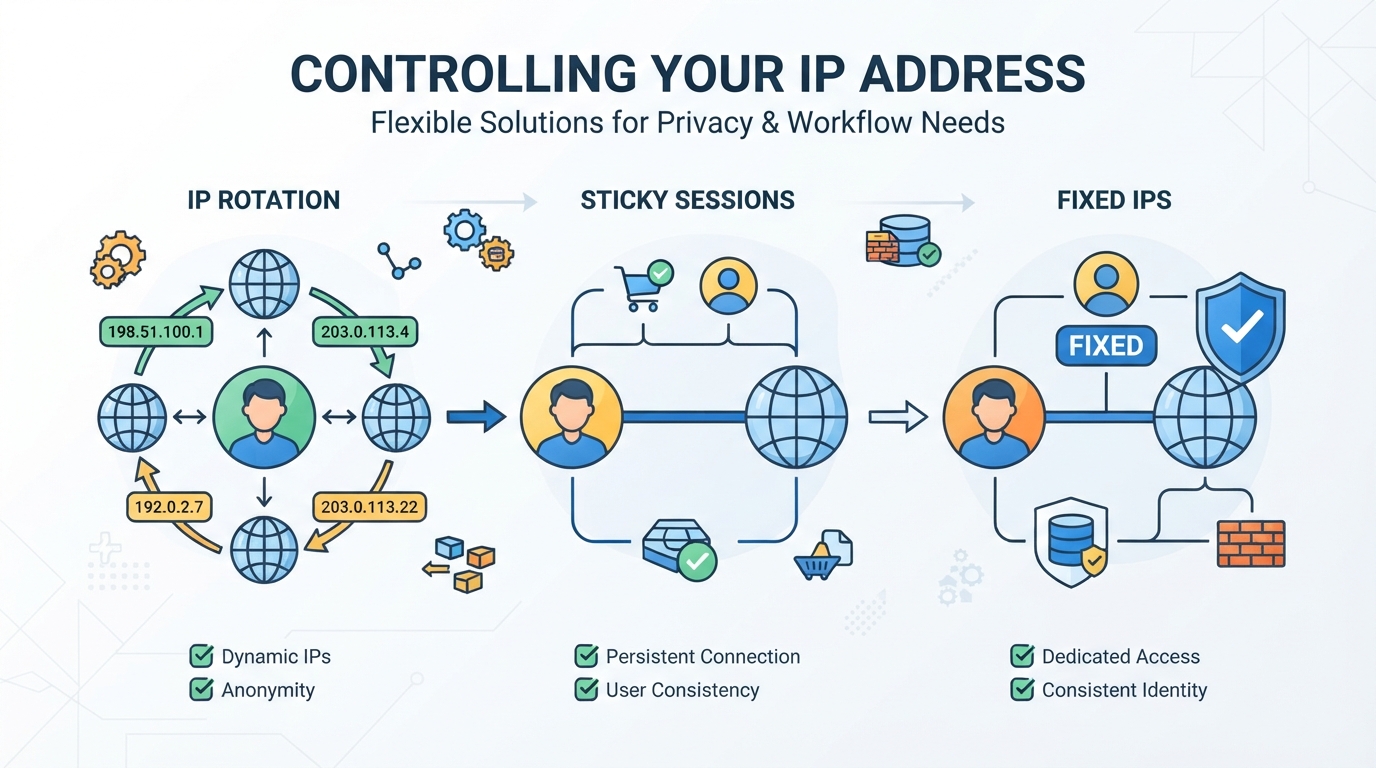
Masking your IP address isn’t just about “hiding”, the real challenge is picking the right level of control for your workflow. Swapping IPs every request might work for scraping, but it’s a headache for account logins or automation that needs stability. Tools like PuraRoute let you dial in this behavior, matching frequent rotation, session consistency, or fixed IPs to the job. The trick is knowing when to switch modes and what each setup actually covers, so you don’t swap one privacy issue for another.
When rotating residential proxies provide the right level of IP masking
If you need your IP to change often, like scraping public sites or running wide-area ad checks, PuraRoute Rotating Residential Proxies push traffic through a pool of 100M+ real residential IPs. You can set rotation mode for maximum churn or sticky session mode to keep one exit IP temporarily, which fits short multi-step workflows. Country, state, and even city targeting let you match locations to regional tasks, but sticky sessions are only temporary; they don’t guarantee a fixed IP beyond your session window.
How static residential proxies keep one IP for longer-term needs
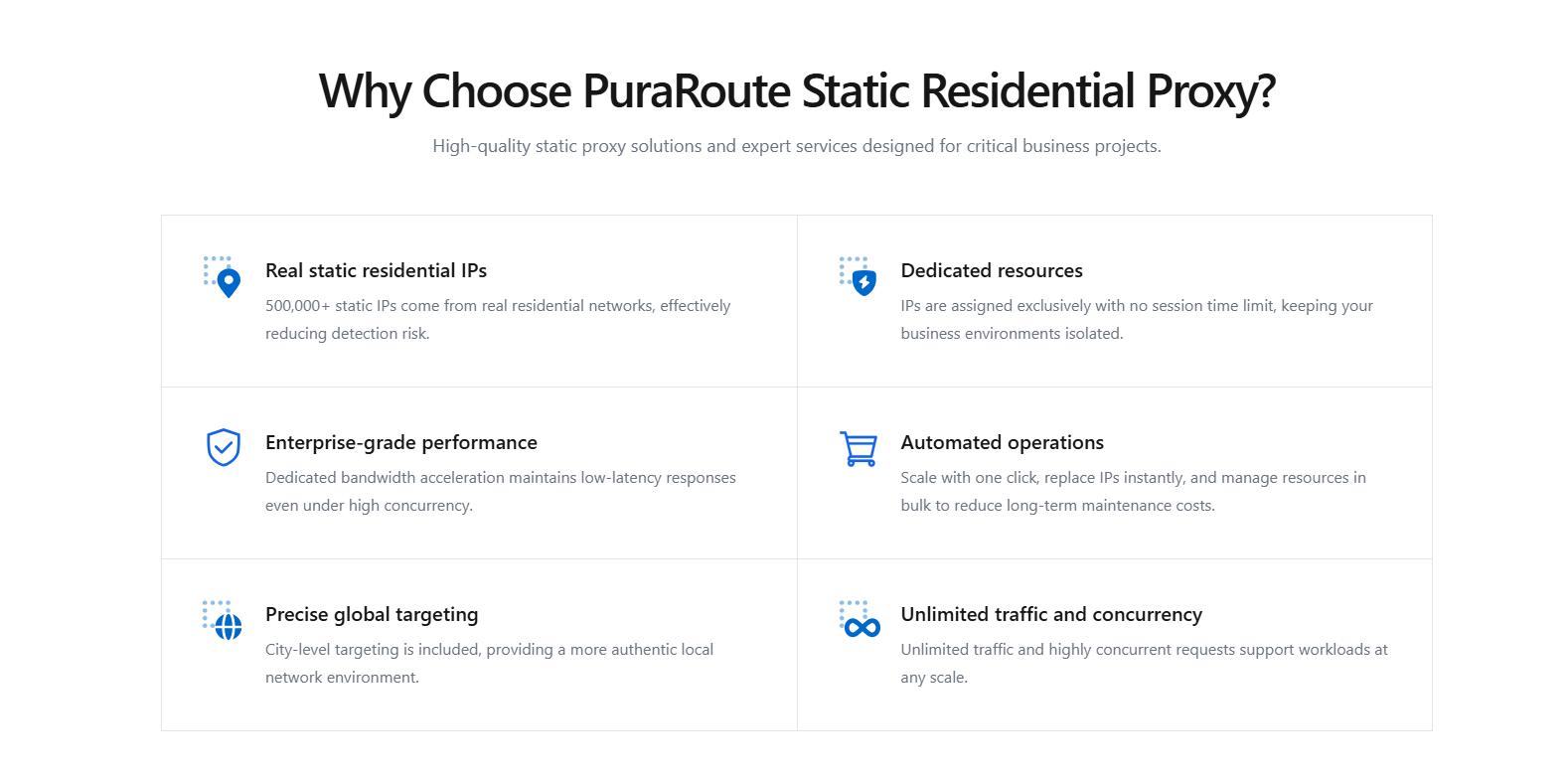
For account operations, browser automation, or anything that needs one IP to stay stable, rotating proxies won’t cut it. That’s where PuraRoute Static Residential Proxies step in, each IP is dedicated and non-shared for the term you buy, so your online identity stays consistent. You buy by IP and duration, not by GB of traffic. The catch is inventory: available cities and countries change, so you need to check live supply before locking in a region. If your resource expires, you can’t always get the same IP back, and unlimited traffic doesn’t mean unlimited access to every website.
What static native proxies add for persistent, native ISP-level masking
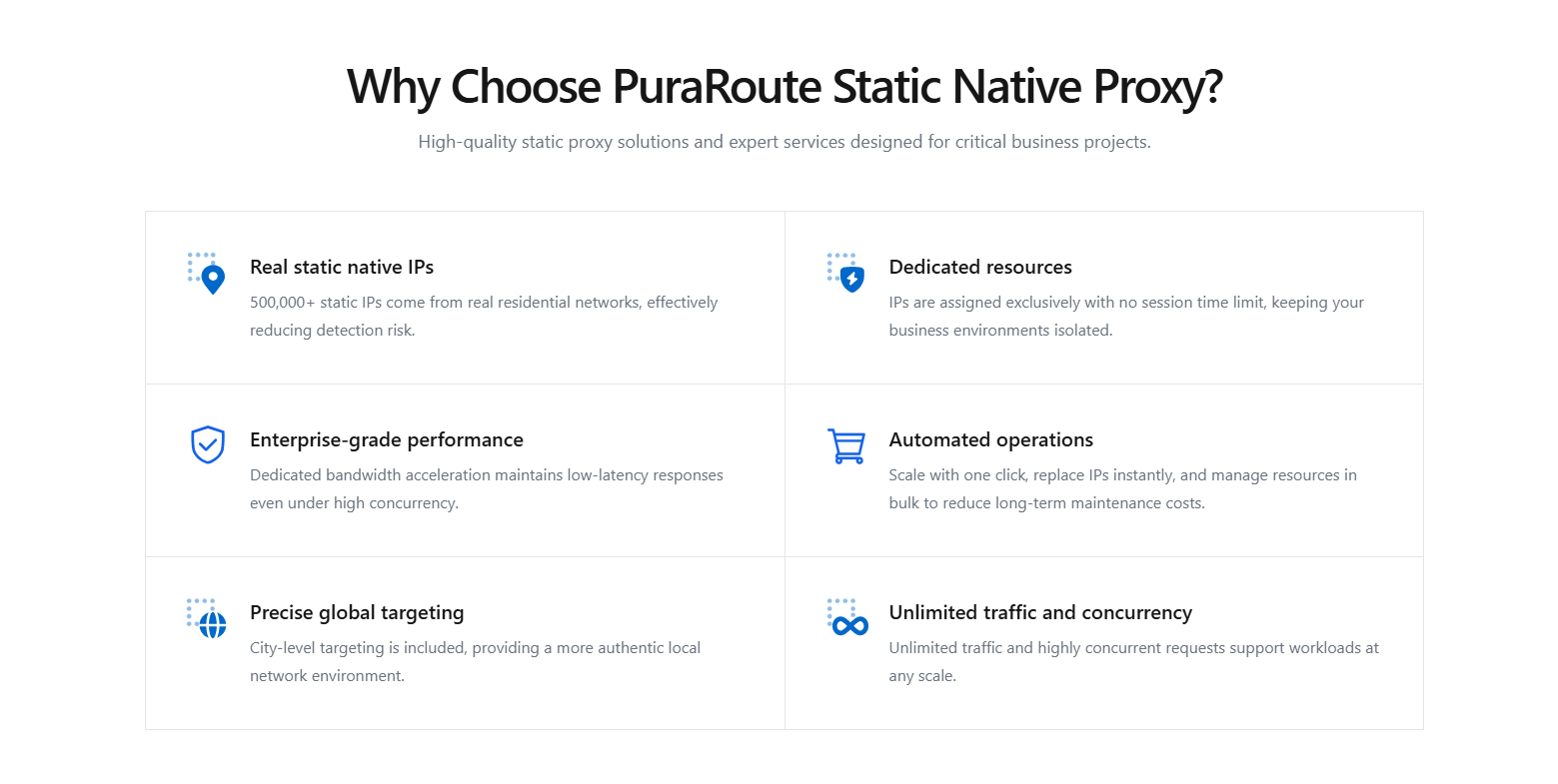
If your workflow needs a fixed native ISP route, like long-term business automation or browser profiles that must look “local”, PuraRoute Static Native Proxies (tagged as ISP_NATIVE) fit the bill. You choose region, quantity, and term, then manage or renew these resources via the platform or API. Inventory and pricing are live, so what’s available can shift quickly; a renewal only works if the resource is still eligible and hasn’t expired.
Next up: before you rely on any method to hide your IP, check what else gets revealed, and where new risks can sneak in.
What to Check Before Relying on Any IP Hiding Method
Not every “hide my IP” method works the way you expect, and if you skip these checks, it’s easy to break sessions, leak your location, or get flagged by websites before you even notice. Session handling and protocol support are the two fastest ways a tool can fail you, especially when your workflow spans more than a simple page load.
How session length and IP stability affect your results
The biggest trap is confusing sticky sessions with true fixed IPs. Sticky sessions only keep the same IP for a short window, they’re not a stand-in for a static proxy. If you need your IP to stay the same for hours or days, only a static proxy gives you that continuity. Relying on session-based options for long automation or account management nearly always leads to mid-task IP changes, which can trigger logouts, re-verification, or even locks.
What protocol and location limits to confirm before setup
If you pick a method without matching your protocol or location needs, you’ll waste time troubleshooting avoidable failures. Before you start, use this checklist:
- Confirm your tool supports the protocol your software needs, HTTP(S) and SOCKS5 are not interchangeable.
- Check whether your target country, state, or city is actually available for the method you’re using, inventory gaps are common with static IPs.
- Make sure you’re not mixing up “temporary sticky” and “static” when your workflow requires the same IP for more than one session.
Missing any of these checks means you’re likely to see failed logins, broken automations, or inconsistent location results. That’s why setup and testing, before going live, matters more than the headline feature list.
How to Set Up and Test Your Chosen IP Hiding Solution
Getting your new IP hiding setup working isn’t just about flipping a switch, each method demands different connection details and steps. If you miss even one, you can end up leaking your real IP, getting blocked, or just failing to connect. Here’s how to set up and actually check your new IP address.
What connection details you need for each method
- For proxies, you’ll need to enter the host (IP or domain), port, username, and password into your app or browser’s proxy settings.
- VPN configurations can use protocols such as OpenVPN or WireGuard. Routing rules, DNS handling, and application exclusions determine their coverage. These protocol examples describe how VPNs work; they are not a recommendation to use a VPN or any provider.
- Tor setup means installing the Tor Browser and making sure it’s running; don’t expect login-required sites to work reliably.
How to verify your new IP and location
Check the public IP observed from the application using the chosen route and compare it with a baseline direct connection. A browser IP checker only tests that browser request; it does not prove that every app, protocol, or interface uses the same route. A private local IP or familiar city label alone does not prove the original public IP is exposed.
IP-geolocation services can disagree about a city even when the intended exit IP is in use. DNS and WebRTC checks test different behaviors and should be interpreted separately. A DNS resolver’s location is not necessarily the user’s location, and an incognito window does not by itself change routing or prevent leaks.
If the observed public IP is not the expected exit, check the application’s VPN or proxy route, fallback behavior, and resource status. If the IP is correct but a city estimate differs, compare databases before declaring the setup broken. Recheck the specific workflow after any routing change.
Next up: hiding your IP only solves part of the privacy puzzle, see what else you need to lock down.
When Hiding Your IP Address Is Not Enough
Masking your IP solves only part of the privacy puzzle. Even when your address changes, plenty of other details can still leak who you are, where you’ve been, or what you’re doing. If you’re serious about staying hidden or accessing restricted sites, you need to know what else is on the table.
What other tracking methods can still identify you
- Browser fingerprinting grabs details like fonts, screen size, and plugin list, sites use this to spot you even if your IP changes.
- Cookies and local storage track your login state, shopping history, and browsing patterns. These stick around unless cleared.
- Account logins tie your session to your real identity; behavior like mouse movements or typing speed can flag bot or multi-account use.
When access controls or legal limits still apply
Changing your IP doesn’t mean you get a free pass. Sites and services use more than just your network address to enforce rules. For example, a streaming service might block new IPs but still detect your browser fingerprint or see that your account was used from multiple regions in the same hour. Even if you’re using a proxy or public Wi-Fi, your device’s language settings, time zone, and app versions can trigger extra verification or lockouts. If the site has legal reasons to block certain users, think banking, government, or licensed content, they’ll dig deeper than just network checks. You could end up flagged for fraud simply by mixing a hidden IP with inconsistent device details. Hiding your IP is only one layer; skipping basic checks or ignoring other markers opens the door to failed logins, bans, or even legal trouble.
The next step isn’t picking the “best” hiding method, it’s matching your workflow to the risks that actually matter. If you need stable access, know which data points to control, and don’t leave gaps that make tracking easy.
How to Choose the Right IP Hiding Method for Your Workflow
Nailing the right way to hide your IP isn’t just about privacy, it’s about matching the method to your actual task and risk profile. What works for a quick location check may fail hard when you need stable, high-volume access or automation.
Which method fits short-term privacy vs. long-term workflow needs
- For short browsing tasks, compare which traffic each method actually routes and which identity signals remain visible; a changed exit IP alone is not a privacy guarantee.
- Running multi-step automation, scraping, or account management? Look for options supporting rotating, sticky, or static IPs.
- Require the same exit IP for days or weeks? Only a static proxy or long-term IP solution will hold up.
How to weigh cost, location, and protocol requirements
Don’t just look at monthly price tags, compare how each method charges and what you actually get for that spend. For example, some proxies bill by data used (per GB), while static IPs charge per address and period. A cheap option can turn expensive fast if you’re moving a lot of data, or can’t target the right country or city. Protocol support (like HTTP(S) or SOCKS5) is another common pitfall; if your tool only works with one, double-check before committing. If you skip this layer of detail, you risk picking a solution that either breaks your workflow or blows up your budget mid-project.
| Method | Example Billing Basis | Operational Check | Key Limitation |
|---|---|---|---|
| VPN service | Subscription, depending on provider | Check routing scope and exclusions | Location and session controls vary |
| Rotating proxy | Often traffic-based | Check IP rotation and session settings | Exit IP may change during a workflow |
| Static proxy | Often per IP and validity period | Confirm the assigned IP and resource term | Inventory and continuity depend on the product |
Table: Compare IP masking methods by cost and fit. Always check live provider details before buying.
Frequently Asked Questions About how to hide ip address
Can hiding my IP address make me completely anonymous online?
No, hiding your IP address does not make you fully anonymous. Websites and apps may still track you using cookies, browser fingerprints, or account details. Even if you use a VPN or proxy, other methods can reveal your identity. Always combine IP masking with good privacy habits for more protection.
Is using a VPN or proxy legal everywhere?
The legality of proxies and VPNs depends on your country and what you’re accessing. Some places restrict or ban these tools, especially for bypassing blocked sites. Always check your local laws and the terms of the website or service you’re using before you try to hide your IP address.
How do I know if my IP address is really hidden?
Compare the public IP seen by the relevant application before and after enabling the VPN or proxy. Verify that the request uses the intended exit and inspect other routes separately when needed. A matching country or city is supporting information, not proof that every application is covered or that no identifying information remains.
What’s the difference between a sticky session and a static IP?
A sticky session keeps the same exit IP for a limited session time, so your connection appears consistent for that period. A static IP, on the other hand, stays fixed for as long as you’ve purchased it. For long-term needs, static IPs give you a steady address.
Do I need to check location inventory before buying a static proxy?
Yes, always check if the location you want is available before buying a static residential or native proxy. Inventory can change quickly, and not all regions or cities may be in stock. Confirm live inventory in the provider’s console or dashboard to avoid issues with your workflow.
Before making any changes, it’s worth mapping out which proxy type or network tool actually fits your use case, whether you need a changing IP for each connection, short-term consistency, or a fixed address for longer sessions. Taking the time to match your workflow to the right method will save troubleshooting later and help you avoid common mistakes with session settings or region selection.
