
Someone follows a tutorial, pastes a server address into a panel that looks like Safari's proxy settings, and nothing changes. The browser keeps loading pages from the same address as before.
Safari has never had a proxy panel of its own. Every request it sends leaves through the network service the Mac is currently using, and that configuration sits two levels away from anything that resembles a browser preference. Once you know where the setting lives, the rest is mechanical.
This guide covers how to set up proxy for Safari on Mac in the order that works: which panel holds the setting, what each of the three toggles actually does, how to confirm the change took effect, and what to check when it silently does not. Paths are given for macOS 13 Ventura and later as well as Monterey and earlier, because the panel moved and older tutorials keep circulating.
What Changes When You Set Up Proxy for Safari on Mac
The change is system-wide rather than browser-specific. After the configuration is applied, Chrome and Edge on the same Mac read the same setting, and so does anything else that uses the system's HTTP stack. That is convenient if you wanted all of them changed, and a problem if you did not.
Where the Setting Actually Lives
On macOS 13 Ventura and later: Apple menu, System Settings, Network, select the service marked Connected, then Details, then Proxies.
On macOS 12 Monterey and earlier: Apple menu, System Preferences, Network, select the service, then Advanced, then Proxies.
Monterey and earlier also carry a shortcut inside Safari itself: Safari menu, Preferences, Advanced, then the Change Settings button next to Proxies. It opens the same system panel described above rather than a browser-only setting. In newer versions of Safari that section is gone, so the system path is the only way in.
The word service is doing real work here. Wi-Fi and Ethernet are separate services with separate configurations. A proxy set while on Wi-Fi does not apply when you plug in a cable, and switching between the two afterwards gives the impression that the setting vanished. It did not vanish. It was never on that service.
What Each Toggle Covers
The panel offers five controls, and they are independent of one another.
- Web Proxy handles plain HTTP requests.
- Secure Web Proxy handles TLS traffic.
- SOCKS Proxy forwards connections at a lower level without interpreting HTTP.
- Automatic Proxy Configuration reads a PAC file that decides per URL.
- Auto Proxy Discovery looks for the network's own configuration.
The second toggle is the one that catches people. With only Web Proxy checked, an https page never touches the proxy at all. Browsing feels normal because most sites are https, and the exit address never changes. That single unchecked box explains a large share of reports that the proxy is not working.

What Never Goes Through It
System services keep their own routes. App Store downloads, software updates, and parts of iCloud traffic are handled outside the browser stack, which makes them a poor way to test whether your configuration works. Load an ordinary website instead, and check the exit address rather than the page.
What to Prepare Before You Set Up Proxy for Safari on Mac
Three things are worth settling before touching the panel. Each one is annoying to fix afterwards.
Pick the Protocol by What the Panel Accepts
The HTTP and HTTPS panels have fields for a username and a password, plus a checkbox for Proxy Server Requires Password. The SOCKS panel does not. It accepts a server and a port and nothing else.
That difference decides more than it looks like it does. A SOCKS5 endpoint that requires authentication cannot be used from this dialog, because there is nowhere to type the credentials. If your provider issues credentials and you want the setup to stay inside System Settings, HTTP or HTTPS is the practical choice. SOCKS5 remains the right tool for applications that carry their own authentication, and for traffic outside the browser.
Credentials or Allowlist
The system stores proxy credentials per network service, and macOS will still ask again after some network changes. Allowlisting does not have that problem. The proxy accepts connections from addresses you registered, and the client sends nothing at all.
Allowlisting needs a stable public address on your side, which is straightforward on a home connection and awkward on a laptop that moves between networks every day. Pick based on which situation you are actually in.
Write the Current Configuration Down
Before changing anything, note what is already there, including whether any service has a PAC file or auto-discovery enabled. Take a screenshot of the panel.
Section six depends on this record. Rebuilding a corporate configuration from memory is worse than it sounds, and the person who set it up may not be available.
Step by Step to Set Up Proxy for Safari on Mac
The order below follows the panel layout from top to bottom. Nothing in it is Safari-specific, which is the point.
Opening the Proxy Panel
- Open System Settings from the Apple menu.
- Choose Network and select the service marked Connected.
- Press Details.
- Choose Proxies in the sidebar.
On Monterey and earlier, the same four steps run through System Preferences, then Network, then Advanced, then Proxies.
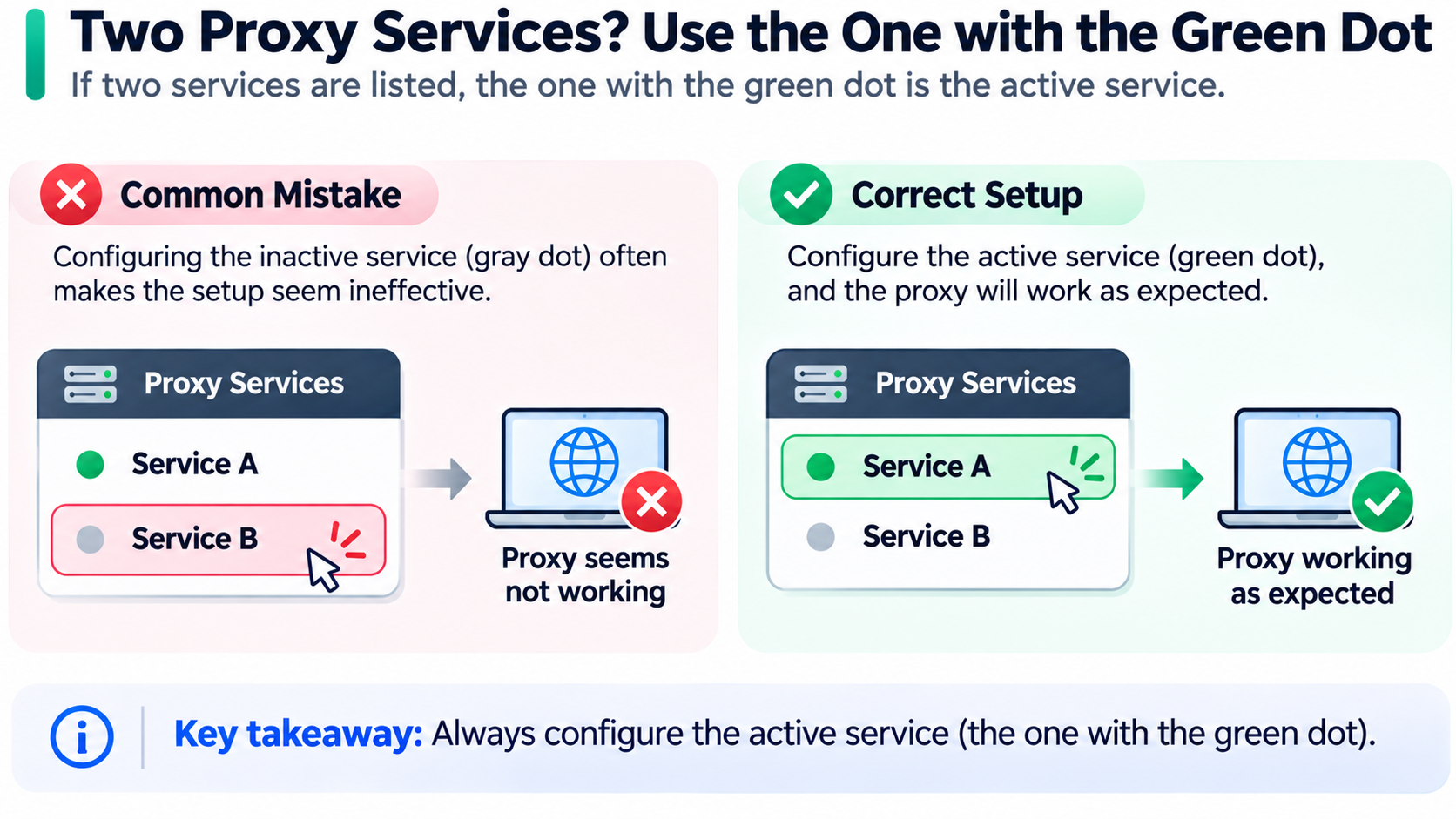
If two services are listed and one shows a green dot, that is the active one. Configuring the inactive service is the second most common reason a correct setup appears to do nothing.
Filling Server, Port and Credentials
Turn on the toggle for each protocol you need, then enter the server and port your provider gave you. HTTP and HTTPS have to be filled separately even when the values are identical, because they are two settings that happen to look alike.
For SOCKS, macOS expects the address and port together in one field. Choose SOCKS5 when your provider issues SOCKS5, and SOCKS4 only when it does not.
If authentication is required, tick the password box on the HTTP and HTTPS panels. Special characters in the password are typed as they are. Nothing needs escaping in this dialog, which is a relief compared with configuring a command-line client.
Applying the Change
Close the Details sheet with OK, then press Apply on the Network pane. The apply step is easy to miss in recent versions because the sheet can look finished before the setting is committed.
Reopen the panel once afterwards and confirm the toggles are still on. A configuration that quietly reverted usually means the change was applied to a different network service than the one carrying traffic.
Checking That the Proxy Carries Safari Traffic
Once you have set up proxy for Safari on Mac, the failure mode is silent. Nothing warns you that the proxy is being ignored. Verification takes a minute and it is worth doing properly.
Reading the Exit Address Back
- Leave the proxy on and load a page that reports your address, such as an IP lookup service.
- Note the address and the city it resolves to.
- Switch the proxy off, reload the same page, and note the address again.
- Compare the two results.
Different addresses mean traffic is going through the proxy. Identical addresses mean it is not, regardless of what the panel shows. Running the check in both directions is what separates a real result from a cached page.

When the Address Does Not Change
Three causes cover nearly every case.
- Only the HTTP toggle is enabled, so https pages skip the proxy entirely.
- A PAC file or auto-discovery is enabled and takes precedence over the manual entry.
- iCloud Private Relay is on and handling the traffic instead.
The second one hides in plain sight, because the PAC setting sits in the same panel and stays enabled after you add a manual proxy.
Reading What the Error Points At
A 407 response means the proxy wants authentication and did not receive valid credentials. A message that Safari cannot connect to the proxy server is a transport problem: wrong port, wrong protocol, blocked port, or an endpoint that is no longer active. A page that loads but shows your original address is a routing problem rather than a connection problem, and the fix is in the toggles.
Those three point at different layers, so work through them in that order. Connection first, authentication second, routing last.
Troubleshooting When Safari Refuses the Proxy
If you have just set up proxy for Safari on Mac and the browser still fails, the cause is usually one of three things. The symptoms look different, so the fixes do too.
It Keeps Asking for the Password
macOS stores proxy credentials in Keychain, and it will happily resubmit a saved password that is wrong. The dialog looks like it is ignoring what you typed because it is: an old entry is being reused.
Open Keychain Access, search for the proxy host, and delete the entry. The next attempt prompts fresh.
Two smaller causes sit alongside that one. A password containing characters that the provider escaped differently will fail consistently. And if the account is restricted by IP allowlist, authentication is not the issue at all; the request is being refused before the password is read.
It Cannot Reach the Proxy Server
Start by turning the proxy off entirely. If pages load normally without it, the connection is fine and the fault sits in the configuration. If they still fail, the proxy was never the problem and no amount of editing will fix it.
With that ruled out, check four things in this order: the port number against the provider's dashboard, the protocol, whether the network blocks that port, and whether the plan is still active.
Protocol mix-ups are common. Entering a SOCKS port in the HTTP panel produces a connection failure rather than a clear error, because Safari is speaking a different protocol to a listener expecting something else. Office and campus networks frequently block outbound ports other than 80 and 443, which makes 8080 or 1080 fail without any indication of why.
Terminal Works but Safari Does Not
A command-line tool reading http_proxy from the environment and a browser reading System Settings are two unrelated mechanisms. Setting the variable in a shell changes nothing for Safari, and setting the system proxy changes nothing for a shell started before it.
If curl works and Safari does not, the environment is configured and the system is not. If Safari works and curl does not, the reverse. Testing one and concluding anything about the other is where the confusion starts.
Turning the Proxy Off and Getting the Network Back
Getting back to an ordinary connection after you set up proxy for Safari on Mac is simpler than making the change, with one exception people miss.
Switching All Three Toggles Off
Turn off Web Proxy, Secure Web Proxy, and SOCKS individually. Disabling one leaves the other two forwarding, and the result looks like a partial failure rather than an unfixed setting.
If a PAC file or auto-discovery was enabled, those need to be turned off as well. A manual proxy entry that you remove while a PAC file stays active will still route traffic, and the panel gives no indication that anything is happening.
Restoring the Original Configuration
Use the record from section two. Fill the values back in, re-enable whatever PAC or discovery setting was on, and apply.
If no record exists, Reset at the bottom of the panel clears the manual entries. It does not restore a PAC URL you deleted, so a network that depends on one will need the address from your administrator.
When to Leave It Off
Three situations are worth turning the proxy off rather than working around it: when iCloud Private Relay has to stay on, when you join a corporate network that enforces its own configuration, and when you are on a public Wi-Fi network whose captive portal will not load through a proxy.
Choosing What to Route Through a Proxy for Safari
Safari reads whatever the system is configured to use, so once you set up proxy for Safari on Mac the question stops being which type is better in the abstract. It becomes which part of your traffic should leave through an address other than your own.
Residential and Datacenter Exits in Safari
The difference that matters is what the address is registered to, not how fast it responds.
| Property | Residential exit | Datacenter exit |
|---|---|---|
| Registered network | Consumer ISP | Hosting provider |
| What the network sees | Ordinary home connection | Server range |
| Fit for logged-in sessions | Yes, when the address is held | Poor, the range is identifiable |
| Fit for public page reads | Workable | Adequate |
| Billing model | Per gigabyte, or per IP | Per IP, usually cheaper |
For reading public pages at volume, a datacenter address is cheap and fast enough. For a session where an account is signed in, the registration behind the exit is the part being read, and that is where a residential address earns its price. The fuller comparison of static vs rotating proxies covers the persistence side of the choice, which matters more than the type once you have settled on residential.
What SOCKS5 Does and Does Not Do
SOCKS5 forwards a TCP connection without looking inside it. It does not add headers, does not interpret HTTP, and does not care what the application is doing. That makes it a good fit for tools that speak their own protocol and a poor fit for anything that needs the connection to resemble a browser session.
In Safari's case, the panel limitation from section two applies: no credential fields. A SOCKS5 endpoint that authenticates by username and password cannot be used there directly. Endpoints that authenticate by source address work fine, which is one more argument for allowlisting.
Per-Site Routing With a PAC File
This is the only native way to set up proxy for Safari on Mac for selected sites rather than everything.
A PAC file is a short script that returns a proxy or a direct connection for each URL. Point Automatic Proxy Configuration at its address and Safari will consult it on every request. Splitting work traffic from personal browsing, or routing one region-specific service through a local exit while everything else stays direct, both fit this pattern.
Two practical notes. A PAC file overrides the manual entries in the same panel, so turn those off so the two settings cannot be confused. And a PAC file served over plain HTTP can be replaced in transit, which is a reason to host it somewhere you control.
Where iCloud Private Relay Sits
Private Relay and a manual proxy do not run together. When both are active, Relay takes the traffic and your configured proxy is skipped, which produces exactly the symptom of a proxy that does nothing.
Turn one off before testing the other. If Relay has to stay on for policy reasons, the manual proxy is not an option on that Mac.
Routing Your Safari Proxy Through PuraRoute
Everything above describes how to set up proxy for Safari on Mac with any provider. What differs between providers is narrower than the marketing suggests: whether the protocol you need is supported, whether you can keep an address long enough, and whether the authentication method suits a system dialog that stores passwords.
PuraRoute sells dynamic residential access billed by traffic and static residential addresses billed per IP from one console, so a setup that changes shape does not mean opening a second account. Both are reachable over HTTP(S) and SOCKS5, and the console issues credentials with runnable examples in Python, cURL, Node.js, PHP, Go, Java.
Residential Sessions Billed by Traffic
The rotating pool covers 195+ countries and regions, and city-level targeting is included in the plan rather than sold separately. For Safari that matters when the content you see depends on the city rather than the country.
Pricing runs on a volume ladder: 2 GB at $2.99 per GB, 10 GB at $1.59, 50 GB at $1.33, and 100 GB at $1.19. Traffic stays valid for 30 days. Current figures for all four tiers are on the residential proxy plans page.
Session control is the setting to look at here. Rotation can change the address per request, and a sticky session holds one address for up to 120 minutes. A browser session that keeps the same exit across a login is easier to reason about than one that changes mid-page.
Static Residential for a Fixed Exit
Static residential plans bill per IP and per term rather than by traffic, with 7-day and 30-day options. The reference total for the default configuration is $2.25 for one IP over 7 days. The 30-day figure is quoted in the console at checkout rather than published, so read it there before committing.
Bandwidth is unmetered and the address is assigned to you alone. For a Mac that keeps one browser profile signed in, that combination removes the two recurring annoyances: traffic running out mid-week and an address that changes under an active session. Inventory for a country or city can be checked before purchase, and IP allowlisting is supported, which is what removes the password prompt from the panel entirely. Plan details sit on the static residential plans page.
Two grades are offered. The standard grade covers most workloads. The premium grade targets stricter requirements on address quality and latency, and is the one to examine when an address is going to stay attached to one identity for months.
HTTP(S) and SOCKS5 From One Console
Both protocols are available on the same account, which matters because the two panels in macOS behave differently. HTTP and HTTPS accept credentials, so a rotating residential endpoint fits a setup that stays inside System Settings. SOCKS5 suits applications that handle their own authentication.
Targeting runs to state, city and ASN, so the address you test in the browser is the one you can keep. Credentials are generated in the console and can be rotated without touching the Mac's configuration if allowlisting is in use.
A proxy changes the address a request leaves from. It does not change what the browser does, what the account behind it does, or how a site judges either. Those stay with you.
Frequently Asked Questions About a Proxy for Safari on Mac
Can You Set Up Proxy for Safari on Mac Without Changing the Whole System?
Not directly. Safari has no configuration of its own, so any proxy it uses is the one the active network service is set to.
The closest native approximation is a PAC file that routes specific domains and returns a direct connection for everything else. Other applications on the Mac still read the same system setting, but the PAC logic can keep them on the direct path for most destinations.
Does Safari Support SOCKS5?
Yes, through the SOCKS Proxy panel in the network service settings. Choose SOCKS5 rather than SOCKS4 when the provider issues SOCKS5.
The limitation is authentication. That panel accepts a server and a port with no credential fields, so an endpoint that requires a username and password will not work there. An endpoint that authorises by source address will.
Why Does iCloud Private Relay Override the Proxy Settings?
Private Relay encrypts and relays traffic at the system level, and it takes precedence over a manually configured proxy. When both are enabled, the proxy is skipped and the exit address you see belongs to Relay rather than to your provider.
The two are alternatives rather than layers. Turn Relay off to test a proxy, and turn the proxy off if Relay has to remain active.
Can Two Safari Tabs Use Different Proxies?
No. Proxy configuration belongs to the network service, and every tab, window, and profile in Safari reads that single configuration.
A PAC file can send different domains through different proxies, which covers part of the intent behind the question. Two tabs showing the same site cannot be split, because the routing decision is made per URL, not per tab.
Do Safari Extensions Change Proxy Settings?
No. Safari extensions do not have an interface for modifying proxy configuration, so an extension cannot route a single tab or apply a proxy to the browser alone. Anything advertised as doing so is either a separate application or a network extension installed at the system level.
Conclusion
Setting up proxy for Safari on Mac comes down to one panel, and the panel belongs to macOS rather than to the browser. Everything that follows — which protocol, which credentials, which address — is decided in that one place.
Most failed attempts trace back to three things: a toggle left unchecked so https traffic skips the proxy, a change applied to the wrong network service, or a PAC file quietly overriding the manual entry. All three look identical from the address bar, which is why the two-way check in section four is the fastest way to find out which one you are dealing with.
The proxy decides where the requests come out. Whether the session behind them behaves sensibly is a separate question, and no setting in that panel answers it.
