
You set up a proxy, open a website, and expect everything to work. Instead, your browser asks for a username and password, or your application displays a 407 Proxy Authentication Required error. This can be frustrating, especially when you have already entered your proxy details and are not sure what went wrong.
The good news is that HTTP 407 errors often come from issues you can identify, such as incorrect credentials, expired access, or mismatched proxy settings. You may not need to replace your proxy or change your entire network setup. In this guide, you'll learn what the error means, why it happens, and how to fix proxy authentication required problems in browsers, Windows, macOS, Python, and web scraping tools.

What Does 407 Proxy Authentication Required Mean?
The 407 Proxy Authentication Required error means your browser or application cannot use a proxy server because it has not provided valid authentication details. A proxy works as a middle point between your device and the website you want to visit. Some proxies require a username and password before they allow traffic to pass through. If those details are missing or incorrect, the proxy may reject the request and return an HTTP 407 error.
This error does not mean the website itself is down or that your internet connection has stopped working. It means the proxy needs to verify your access before it can continue. According to the HTTP Semantics standard (RFC 9110), a proxy uses this response to request valid authentication details from the client. Understanding where this check happens makes it much easier to find the cause of the problem.
How HTTP 407 Proxy Authentication Required Works
When you visit a website through a proxy, your request goes to the proxy server first. If the proxy requires authentication, it checks whether your browser or application has supplied the right credentials. When those details are missing or invalid, the proxy can return a 407 Proxy Authentication Required response. The response includes a Proxy-Authenticate header, which tells the client what authentication method the proxy expects. The client can then send another request with the correct details in a Proxy-Authorization header.
For example, imagine you are using a residential proxy to check product prices on a US shopping website. You have entered the proxy address and port, but you forgot to add your username and password. Your browser connects to the proxy, but the proxy cannot verify that you are allowed to use it. Instead of forwarding your request to the shopping website, it returns an HTTP 407 response. Once you enter the correct proxy credentials and try again, the request can pass the authentication check and continue to the website.
What Happens When Proxy Authentication Fails?
When proxy authentication fails, the proxy may stop the request before it reaches the destination website. What you see depends on the browser or application you are using. A browser might ask you to enter a proxy username and password, while a script may display an error such as 407 Proxy Authentication Required. Some applications only show a general connection failure, which makes the real problem harder to identify.
Consider a developer running a Python script that collects public product information through a paid proxy service. The script worked yesterday, but the proxy password was changed in the provider's dashboard. The script still uses the old password, so every new request receives a 407 response. The website has not blocked the script, and changing the target URL will not solve the issue. The developer needs to update the proxy login details used by the script.
One useful clue is whether the error appears across several websites. If different websites return the same 407 error when you use the same proxy, the shared proxy connection is a good place to start checking. However, a failed login is not always caused by a wrong password. The client might be sending credentials in the wrong format, using an unsupported authentication method, or failing to send them at all. These details matter because they lead to different fixes.
HTTP 407 vs. 401 Unauthorized vs. 403 Forbidden
HTTP 407 is easy to confuse with 401 Unauthorized and 403 Forbidden because all three errors can involve access restrictions. However, they point to different problems. The key difference is whether the proxy or the destination server is asking for authentication or refusing access. Knowing this helps you avoid changing proxy settings when the real issue is your website login or account permissions.
| HTTP Status Code | What It Means | Example |
|---|---|---|
| 407 Proxy Authentication Required | The proxy needs valid authentication details before it can process the request. | You enter the wrong password for your paid proxy. |
| 401 Unauthorized | The destination server requires valid login credentials. | You try to access an API using an expired access token. |
| 403 Forbidden | The server understands the request but refuses access. | Your account is signed in but lacks permission to open a restricted page. |
For example, imagine you are using a proxy to access a business dashboard. If you receive a 407 error, you should first check whether your proxy credentials are being sent correctly. If you receive a 401 error from the dashboard, your website login or API credentials may need attention instead. A 403 response means the server is refusing the request, which may be due to account permissions, access rules, or another restriction. In that case, changing your proxy password is unlikely to help unless the 403 response comes from the proxy service itself.
The distinction is especially useful when troubleshooting automated tasks or applications that use proxies. A 407 error points to the proxy authentication stage, while a 401 or 403 response usually requires a closer look at the service returning it. Checking the response source and relevant headers can help you identify which system needs attention before you make changes.
What Causes the 407 Proxy Authentication Required Error?
Now that you know what HTTP 407 means, the next step is finding out why it happens. The 407 Proxy Authentication Required error usually comes from missing login details, incorrect proxy settings, or access restrictions. In some cases, the problem is on the proxy server itself. Here are six common causes worth checking.
Incorrect or Missing Proxy Username and Password
One of the most common causes is entering the wrong proxy username or password. Even a small typing mistake can prevent authentication. For example, if you copy a proxy address into your browser but leave the password field empty, the server may return a 407 error. The same can happen when your application fails to send the saved credentials.
Expired or Invalid Proxy Credentials
Proxy login details may stop working when an account expires, a subscription ends, or a password is changed. For example, you may update your password in the provider's dashboard while your scraping script still uses the old one. The proxy then rejects the request, even though the script worked before. Checking your account status and current credentials can help identify this issue.
Incorrect Proxy Server Address or Port
A wrong proxy address or port can send your request to the wrong service. In some cases, that service may require different credentials and return an HTTP 407 error. For example, using a port assigned to another proxy service instead of your purchased endpoint may cause an authentication failure. However, an invalid address or closed port will more often cause a connection error rather than a 407 response.
Proxy Authentication Method Mismatch
Not all proxies use the same authentication method. Some support Basic authentication, while others use Digest, NTLM, or another method. If your browser or application cannot use the method required by the proxy, authentication may fail. You can check the Proxy-Authenticate response header to see which method the server requests.
IP Whitelisting and Access Restrictions
Some proxy providers allow access through approved IP addresses instead of, or alongside, a username and password. If your public IP changes and the new address is not approved, the provider may reject your connection. For example, switching from an office network to a home connection can cause access problems if only the office IP is allowed. Depending on the provider's system, this may produce a 407 error or another connection failure.
Proxy Server Configuration or Network Issues
Sometimes, your credentials are correct, but the proxy server cannot complete the authentication process. This can happen because of incorrect server rules, a failed authentication service, or network settings that interfere with login requests. For example, a company proxy may repeatedly ask employees to sign in if its single sign-on system is not working correctly. In that situation, the network administrator may need to check the proxy's authentication service rather than ask users to change their passwords.
How to Fix Proxy Authentication Required Errors in Different Environments
Once you know what causes the 407 Proxy Authentication Required error, you can start fixing it. The steps depend on where you use the proxy. A browser may need updated login details, while a Python script may need changes to its proxy settings. The following methods cover four common environments and show how to get your connection working again.
Fix HTTP 407 Proxy Authentication Required in Chrome and Other Browsers
If you see an HTTP 407 error in Chrome, start by checking your proxy settings and login details. Chrome normally uses your computer's proxy settings on Windows and macOS. However, a proxy extension or a company policy may also control the connection. This means you need to find out which settings your browser is using before making changes.
Follow these steps to fix the error:
- Open Chrome Settings > System > Open your computer's proxy settings.
- Check that the proxy server address and port match the details from your provider.
- If you use a proxy extension, open its settings and check the saved username and password.
- When the browser shows a proxy login prompt, enter your current credentials.
- Open a website again to see whether the error disappears.
For example, if you recently changed your proxy password but Chrome still uses old login details, authentication may continue to fail. Updating the credentials and starting a new browser session may solve the problem. If Chrome never asks for a password, check whether a proxy extension or managed browser policy is handling authentication. Firefox also has its own proxy settings under Settings > General > Network Settings, which can help when you need to check its connection separately.
Fix Proxy Authentication Required on Windows and macOS
Sometimes, the proxy authentication required error comes from your computer's network settings rather than the browser itself. This is common when you use a system-wide proxy for several applications. Windows and macOS both support manual proxy configuration, but the steps are slightly different. Before changing anything, make sure you have the correct proxy address, port, and login details from your provider.
On Windows 11:
- Open Settings > Network & internet > Proxy.
- Under Manual proxy setup, select Set up next to Use a proxy server.
- Check the proxy IP address and port against your provider's details.
- Save the settings and reopen the application.
- If prompted, enter the correct proxy username and password.
Windows' manual proxy panel is mainly used to set the server address and port, not to store proxy login details. If the error continues, check the application's authentication settings or ask your network administrator whether a setup script is required. You can also read the guide to setting up a proxy on Windows 11 for more details on checking and testing the connection.
On macOS:
- Open System Settings > Network.
- Select your active Wi-Fi or Ethernet connection, then click Details > Proxies.
- Choose the proxy type required by your provider, such as Web Proxy (HTTP) or Secure Web Proxy (HTTPS).
- Enter the server address and port.
- If your proxy requires login details, enable Proxy server requires password and enter your username and password.
- Click OK and test the connection again.
For example, you may have configured your proxy on office Wi-Fi, then switched to another network with different settings. The application may now use the wrong proxy or fail to send the expected credentials. Checking the active network service is often more useful than repeatedly changing your password. You can also follow Apple's official proxy settings guide if you need help finding these options.
Fix HTTP 407 Errors in Python Requests
If you use Python Requests for API calls or data collection, a 407 error often means your script is not sending the correct proxy credentials. Unlike a browser, a Python script usually cannot ask you to enter a password in a pop-up window. You need to provide the proxy settings in your code or through another supported method. For an HTTP proxy that uses Basic authentication, Requests lets you add the username and password to the proxy URL.
First, install the library if you have not already done so:
python -m pip install requests
Next, use the following example to test your proxy connection. Replace the sample values with the details from your proxy provider.
import os
import requests
from urllib.parse import quote

username = quote(os.environ["PROXY_USER"], safe="")
password = quote(os.environ["PROXY_PASS"], safe="")

proxy_host = os.environ["PROXY_HOST"]
proxy_port = os.environ["PROXY_PORT"]

proxy_url = (
    f"http://{username}:{password}"
    f"@{proxy_host}:{proxy_port}"
)

proxies = {
    "http": proxy_url,
    "https": proxy_url
}

try:
    response = requests.get(
        "https://httpbin.org/ip",
        proxies=proxies,
        timeout=15
    )
    response.raise_for_status()
    print(response.text)

except requests.exceptions.RequestException as error:
    print(f"Request failed: {error}")
This example reads proxy details from environment variables rather than placing passwords directly in the source code. The quote() function handles special characters in the username or password, such as @ or #, which could otherwise break the proxy URL. If authentication works, the response should show the IP address seen by the test service. If you still receive a 407 error, check the credentials, endpoint, and authentication method. Keep in mind that environment variables also need proper access controls, since they can expose sensitive details in some systems.
For more details on connection formats and proxy authentication, you can review the PuraRoute integration guide. It includes examples for common proxy clients and programming languages.
Troubleshoot Proxy Authentication Errors in Web Scraping Tools
Web scraping tools such as Scrapy and Playwright can also encounter 407 Proxy Authentication Required errors. This often happens when the tool has the right proxy address but does not send the required login details. For example, a scraper may work with an IP-whitelisted proxy but fail when switched to a proxy that requires a username and password. You need to make sure the authentication settings match the proxy service.
If you use Playwright with Python, you can pass proxy credentials when launching the browser:
from playwright.sync_api import sync_playwright

with sync_playwright() as p:
    browser = p.chromium.launch(
        proxy={
            "server": "http://proxy.example.com:8080",
            "username": "your_username",
            "password": "your_password"
        }
    )

    page = browser.new_page()
    page.goto(
        "https://httpbin.org/ip",
        timeout=30000
    )
    print(page.text_content("body"))

    browser.close()
Playwright supports proxy settings at the browser or browser-context level, including separate username and password fields for HTTP proxies. This is different from the http_credentials option, which is used for website HTTP authentication. Mixing up these settings can leave proxy authentication unresolved even when the correct password is available. The official Playwright network documentation explains how to configure these options.
For larger scraping projects, test the proxy with a single request before running the full job. If one request succeeds but others fail, check whether different workers, browser contexts, or scraping tasks are using the same proxy configuration. Also review your tool's error logs to see whether the failures are HTTP 407 responses or another type of connection error. This helps you fix the actual authentication problem without wasting time changing target websites or retry settings.
How to Prevent Proxy Authentication Required Errors
Fixing a proxy connection is useful, but dealing with the same error every few days can slow down your work. If you use proxies for web scraping, market research, or daily browsing, a few simple habits can help prevent 407 Proxy Authentication Required errors. The goal is to keep your login details, authentication settings, and proxy connections working together.
Keep Proxy Credentials and Settings Updated
Proxy passwords, server addresses, and access permissions can change over time. If you manage several proxies, it is easy to miss an update. For example, a team might change its proxy password but forget to update the credentials in an automated scraping task. The task may continue running with the old password and return HTTP 407 errors until someone notices the problem.
To avoid this, store proxy credentials securely and update them in every application that uses them. A secret manager can be useful for sharing credentials with applications without putting passwords directly in source code. It also helps to check your subscription status and test the connection after changing any proxy settings. These small checks can prevent unexpected authentication failures during important tasks.
Choose the Right Proxy Authentication Method
Before connecting to a proxy, check which authentication methods your provider supports. Many proxy services offer username and password authentication, IP whitelisting, or both. Username and password authentication is often useful when working across different networks, while IP whitelisting can be convenient for servers with stable public IP addresses.
For example, if you run a scraping tool on a cloud server with a fixed IP, you may be able to add that address to your provider's whitelist. However, if your server's public IP changes, you will need to update the approved address. You should also confirm that your application supports the proxy's required authentication scheme. If you are unsure which option fits your setup, the guide to proxy authentication methods and setup explains the differences in more detail.
Monitor Proxy Connections and Authentication Failures
Even with the right settings, proxy authentication problems can appear without warning. Regular connection checks help you catch issues before they interrupt your work. For example, a scraping team running hundreds of requests each hour can monitor HTTP response codes and set an alert when the number of 407 errors suddenly increases. This makes it easier to identify a broken proxy connection before it affects the entire task.
You can also keep basic records of connection attempts, error codes, and the proxy endpoints involved. If several tasks start returning proxy authentication required errors at the same time, compare their shared settings and recent changes. Avoid storing passwords or full authentication headers in these logs, since they may contain sensitive information. With regular monitoring, you can spot repeated failures early and reduce the time spent troubleshooting.
How PuraRoute Helps Simplify Proxy Authentication and Management
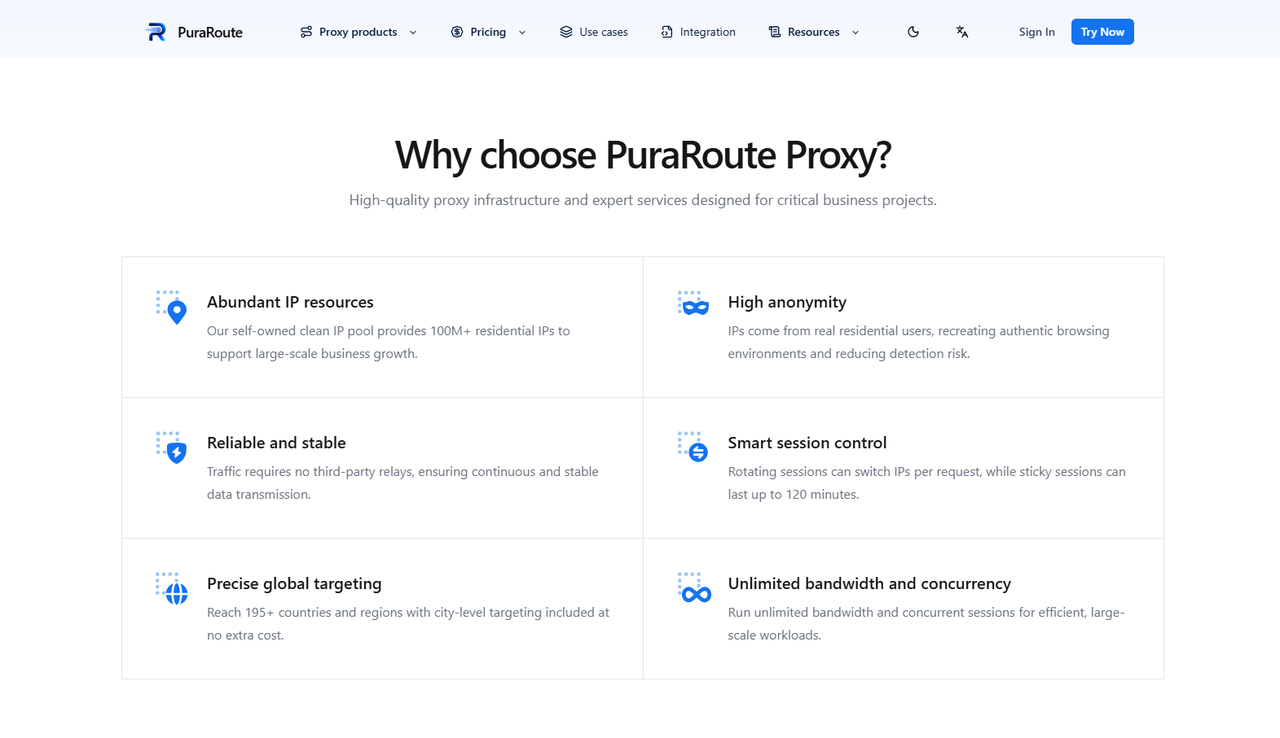
Keeping proxy credentials updated and checking connection settings can help reduce 407 Proxy Authentication Required errors. However, managing several proxies across different tools can still become time-consuming. If you regularly use proxies for web scraping, market research, or e-commerce, you may want a service that makes these settings easier to manage. PuraRoute offers residential proxy options and a central dashboard where users can manage connections, credentials, and usage.
Manage Proxy Credentials and Connection Settings
When using PuraRoute, you can access proxy connection details through your account dashboard, including the server address, port, username, and password. You can also create separate subaccounts for different projects and manage their traffic limits. For example, if you run several scraping tasks, keeping their proxy settings separate may make it easier to identify which connection is causing an HTTP 407 error.
You can also choose between HTTP(S) and SOCKS5 connections based on your application and the selected proxy product. Before starting a task, it is worth checking that the generated connection details match the settings in your browser or script. This may help reduce errors caused by outdated credentials or incorrect proxy configurations.
Choose Residential Proxies for Different Tasks
Different tasks may require different types of proxy connections. With PuraRoute, you can choose dynamic residential proxies when you need IP rotation, location options, or short-term sticky sessions. These options may be useful for collecting public product data or checking how website content appears in different regions.
For tasks that need a consistent IP address, such as managing an e-commerce store or running a longer session, you can consider static residential proxies instead. Choosing the right proxy type will not automatically prevent authentication errors, but it can help you maintain a connection setup that better matches your work. You can also read the dynamic vs. static residential proxies comparison to learn which option may suit your needs.
Get Support for Proxy Setup and Connection Issues
Even after checking your settings, you may still run into a proxy authentication required error that is difficult to explain. For example, your credentials might appear correct, but a Python script continues to receive HTTP 407 responses. In this case, you can review the available setup instructions or contact the support team through PuraRoute's support channels.
Sharing the proxy type, connection method, error code, and a short description of the issue may help the team investigate. You should avoid sharing passwords or other sensitive credentials in support messages. While not every connection issue can be resolved immediately, having setup instructions and support available gives you another way to troubleshoot problems without repeatedly changing settings on your own.
Frequently Asked Questions About Proxy Authentication Required
What Does Proxy Authentication Required Mean?
Proxy Authentication Required means the proxy server needs valid login details before allowing your request. This usually happens when your username or password is missing, incorrect, or no longer valid.
Why Do I Keep Getting a 407 Proxy Authentication Required Error?
Repeated HTTP 407 errors often come from incorrect credentials, expired proxy access, or unsupported authentication methods. Check your proxy username, password, server address, and port to identify the problem.
How Do I Fix Proxy Authentication Required in Chrome?
Open Chrome's settings and go to System > Open your computer's proxy settings. Check the proxy address and port, then update your login details when prompted. If you use a proxy extension, check its authentication settings as well.
Can I Fix HTTP 407 Without Changing My Proxy?
Yes. You can often fix a 407 Proxy Authentication Required error by updating your credentials, correcting connection settings, or checking IP whitelist permissions. You may not need to replace your proxy server.
What Is the Difference Between HTTP 407 and HTTP 403?
HTTP 407 means a proxy server requires valid authentication before processing your request. HTTP 403 means a server understands the request but refuses access. A 407 error usually calls for checking proxy credentials, while a 403 error requires checking why the server denied access.
Conclusion
The 407 Proxy Authentication Required error usually means your proxy server cannot verify your access. It may happen because of incorrect login details, expired credentials, or mismatched authentication settings. While the error can interrupt browsing, web scraping, or automated tasks, many cases can be resolved by checking your proxy configuration.
Start by confirming your username, password, server address, and port. If the error continues, check the authentication method and any IP access restrictions. Keeping your credentials updated and monitoring connection errors can also help prevent the same problem from happening again.
If you regularly work with proxies, choosing a service with clear connection settings and accessible support may make troubleshooting easier. You can explore the PuraRoute website to find a proxy setup that fits your tasks and connection needs.
