
Your proxy worked last week. Tonight Telegram sits on Connecting, the toggle is still green, and the same host and port load pages fine in a browser. Nothing on your side changed, which is what makes a Telegram proxy not working so hard to read: the client gives you one status light and no error code.
This guide splits the failure into the places it actually happens, gives you a test for each, and ends with the settings that hold. Everything below runs on the phone or desktop you already have open.
Telegram Proxy Not Working: Where It Breaks First
The toggle being on tells you less than it seems. Telegram reports that a proxy is configured, not that traffic still passes through it, so the app can look healthy while every packet dies at the far end.
Three faults cover most cases, and each one sits in a different layer.

The proxy server itself is down or saturated
A dead proxy rarely announces itself. The port still completes a TCP handshake, so the client marks the entry as enabled, but nothing comes back inside the tunnel. You see Connecting, then a retry, then silence.
The tell is that the same address fails outside Telegram. Put the host, port and credentials into a browser profile or a terminal request and load any page. If it times out there too, the server is gone and no setting on your phone will bring it back. Free public proxies die this way constantly: one machine shared by everyone who found the same list.
An app update wipes the proxy entry
Telegram updates sometimes reset connection settings without asking. On Android the entry can survive an update while the switch beside it comes back off, which looks exactly like a proxy that stopped working.
Open the proxy list instead of trusting the toggle. If the entry is still there, check the switch beside it before you touch anything else. Five seconds of looking saves twenty minutes of re-entering credentials.
Settings saved but pointed at a dead port
The third fault is your own typing, and it fails silently. A host pasted with a trailing space. A port typed as 1080 when the server expects something else. An MTProxy secret that lost four characters in a copy. A username field left empty on a proxy that demands authentication.
MTProxy is the fussiest of these. The secret is a hex string, and Telegram rejects a truncated one the moment the connection opens, so the session never starts. SOCKS5 tolerates a wrong secret if the server does not require one, but it is just as unforgiving about the port.
Quick Checks to Tell Proxy Failure from App Failure
Knowing the three layers does not tell you which one you are in. That comes from changing a single variable and watching what moves.
Run Telegram with the proxy turned off
Switch the proxy off and try again. If Telegram connects on the raw connection, your network is fine and the fault sits in the proxy path. If it cannot connect without a proxy either, the proxy is not the problem yet.
One exception matters here. In networks where Telegram is only reachable through a proxy, the no-proxy run fails whether or not the proxy is healthy, so read nothing into that result. You need a second reference point, which is the next check.
Confirm the underlying connection is stable
Proxy traffic reacts to packet loss in a way ordinary browsing does not, because Telegram holds one long-lived connection instead of opening a fresh request per click. Load a file of a few hundred megabytes, or open a channel with plenty of media, and watch whether it stalls halfway.
Switching between Wi-Fi and cellular mid-test tells you more. A proxy that works on cellular and fails on Wi-Fi points at the local network or its router, not at the proxy.
Repeat the test on a second device
Put the same proxy, port and credentials on a second device. A clean connection there means the fault lives on the first device: a leftover system proxy, a client that intercepts traffic, or a firewall rule you forgot about.
Swap in a second proxy on the same device
Last variable. Keep the device, change the proxy. If the new one connects, the old one is dead or misconfigured. If both fail, the constraint sits above the proxy, in the device or in the network.

Four checks, one table:
| What you change | What you watch | What it means |
|---|---|---|
| Turn the proxy off | Whether Telegram reaches its servers at all | Network is fine, the fault is in the proxy path |
| Load a large file or a media-heavy channel | Stalls, resets, throughput dropping to zero | The underlying link is stable, or it is not |
| Same proxy on a second device | Same failure, or a clean connect | Device-level conflict, not the proxy |
| A different proxy on the same device | Whether behaviour flips | The old proxy is dead or misconfigured |
Step-by-Step Fixes for Telegram Proxy Not Working
Once the checks point at the proxy rather than the network, a Telegram proxy not working usually comes down to two things: an entry that is wrong, or an entry that is stale. The repair is short either way.
Telegram keeps old entries alive longer than you would expect, so the order is what matters.
Work through it in this sequence:
- Delete the existing proxy entry. Switching it off is not enough.
- Close Telegram completely and reopen it, so the client re-reads its connection settings.
- Paste the full link, or enter host, port and credentials by hand.
- Confirm the new entry is listed and switched on.
- Send a message to a media-heavy channel. Traffic is the test, not the status light.
Delete the old entry, then re-add with the exact link
Two link formats cover nearly everything. tg://proxy?server=&port=&secret= is MTProto, tg://socks?server=&port=&user=&pass= is SOCKS5. They are not interchangeable, and pasting one where the other belongs produces a proxy that saves without error and never connects.
If you are typing by hand rather than pasting, read the values back one at a time against what your proxy provider issued. Host, port, and for SOCKS5 a username and password. For MTProxy, the secret only, and it must be the complete string with nothing trimmed from either end.
Fix it on Android, iOS, Windows, macOS, Linux
The entry points differ by platform, and the desktop clients add a wrinkle the mobile ones do not have.
- Android: Settings → Data and Storage → Proxy, then add the entry. After a system-level proxy app has been installed, check that it is not holding the connection open in the background.
- iOS: Settings → Data and Storage → Proxy, same structure. iOS does not let Telegram inherit a system-wide HTTP proxy, so an entry added in Wi-Fi settings will not appear here.
- Windows and macOS: Telegram Desktop → Settings → Advanced → Connection type. The desktop client offers a separate switch to use the system proxy, and with that switch on, an entry added in the app can be ignored.
- Linux: the same Telegram Desktop path. Environment variables such as
http_proxyare not read unless the system proxy switch is enabled, so setting them and seeing no change is expected.
On every platform, the last step is identical: verify with traffic. An entry that loads a channel's history is working. One that shows Connecting indefinitely is not, no matter what the toggle says.
How to Set Up a Telegram Proxy Correctly
Most of the faults above are born in the first five minutes of configuration. Setting it up once, properly, is cheaper than diagnosing it later.
Mobile setup on Android and iOS
Open Settings, go to Data and Storage, then Proxy, and add the entry. Paste the link if your provider gave you one; type it only when there is no alternative, because the secret field is where typos survive.
Turn the proxy on and watch the connection indicator. A working setup moves from Connecting to Connected within a few seconds. If it sits on Connecting, the credential is wrong or the server is unreachable, and waiting longer will not change either.
Desktop setup on Windows, macOS, and Linux
Telegram Desktop hides this one level deeper: Settings, then Advanced, then Connection type. Add the entry there, and decide deliberately whether the system proxy switch is on.
The switch matters because it changes which settings win. With it on, the client follows the operating system's proxy configuration and may ignore the entry you just added. With it off, only the in-app entry counts. Pick one and stay with it, otherwise you end up debugging a setting that is not in effect.
Configuration mistakes that fail silently
Three mistakes produce no error message at all:
- Mixing protocol and port, for example pointing a SOCKS5 entry at a port that only speaks HTTP.
- Copying an MTProxy secret from a page that wrapped the text, so the last line of hex is missing.
- Adding credentials to an MTProxy entry, which does not use them, while leaving them blank on a SOCKS5 entry that requires them.
None of these show a warning. The entry saves, the toggle goes green, and the connection still fails, which is why the checks in the previous section start with traffic rather than with settings.
MTProxy vs SOCKS5: Which One Survives a Blocked Network
The fixes so far assume the entry itself is sound. Once it is, and the connection still refuses to open, the protocol underneath becomes the only variable left.
How the two differ in transport and authentication
MTProxy is Telegram's own construction. Client and proxy share a secret, the stream is wrapped so it does not read like a proxy protocol on the wire, and the secret comes in a few forms that begin with different prefix characters. There is no username field and no password field anywhere in it.
SOCKS5 is a published standard. The client hands over a host and a port, optionally a username and a password, and nothing disguises what it is. Any application can use it, which is why the same endpoint that serves Telegram can also serve your browser.
That difference decides which one a network treats as ordinary traffic and which one it classifies on sight.
When a plain SOCKS5 keeps dropping
The pattern to watch for is a handshake that completes and then resets within seconds, over and over, with text arriving in bursts before it stops. A Telegram proxy not working on one network and working on another, with the same credentials, points at the protocol rather than at your typing.
Switching to an MTProxy endpoint on port 443 is the usual next move, because that port is rarely closed and the wrapped stream is harder to classify.
The trade is real, though. An MTProxy carries Telegram and nothing else. You cannot put a browser or a scraping job through it, so it solves one application, not a workflow.
What a free public proxy costs you
Public MTProxy links spread through channels, which means everyone who saw the post is on the same machine. When it saturates, all of them drop at once, and you have no way to tell whether the exit is overloaded or has been blocked.
There is no known lifetime either. A free endpoint can vanish at any hour, taking with it the address your account has been logging in from. That is the part worth paying for: an address that belongs to you for a stated period, and that you checked before you bought it.
Telegram Connects but Messages Won't Load
A connection that completes is a different failure from one that never opens, and the fixes differ.
Telegram proxy not working is often described this way: the app says Connected, the spinner is gone, and nothing loads.
Online status shows while media stalls
The handshake and the authentication happen at the transport level. If the tunnel carries the control channel but throttles throughput, the client reports Connected while messages trickle and photos never finish.
Text often still arrives, which misleads people into thinking the proxy is fine. Send a file to Saved Messages and watch the transfer. If it starts and stalls at the same point every time, you are looking at throughput, not connectivity.
Calls fail while text goes through
Voice calls need UDP. A SOCKS5 endpoint that forwards only TCP will open, deliver your messages, and drop every call, which reads like a Telegram bug and is not one.
MTProxy handles the transport differently, and neither type guarantees calls will work. If calling matters to you, test a call early rather than after you have committed to an endpoint and moved your sessions onto it.
Secret chats behave differently under a proxy
Secret chats are end-to-end and tied to the device that created them, so they do not follow the same routing as cloud chats. A proxy that fixes your channels can leave a secret chat in a different state, and on some setups the two never agree.
Test both before you blame the proxy for the whole application.
Advanced Troubleshooting When Telegram Proxy Not Working Persists
When the basic checks and a protocol swap both fail, the constraint sits above the application: in the operating system, in the router, or in the network you are attached to.
Verifying the proxy is actually down
Point a terminal request at the same host and port with the same credentials, and ask it to fetch a page. This separates two failures that look identical inside Telegram: a port that accepts connections but forwards nothing, and an exit that the destination refuses.
If the terminal request succeeds, the proxy is alive and the fault is in the Telegram configuration. If it fails the same way, stop editing settings and replace the endpoint.
System proxy vs app proxy conflict
This one is specific, and it is worth checking carefully on Windows. The system-level proxy dialog there handles HTTP and HTTPS only. It does not carry SOCKS5, and it has no fields for a username or a password.
Telegram Desktop offers a switch to use the system proxy. Turn that on with a SOCKS5 endpoint configured, and the client follows a setting that cannot express what you entered. The entry looks right, the switch looks right, and nothing connects.
Turn that switch off and let the in-app entry stand alone. If your workflow genuinely needs a system-wide setting, the Windows constraints are walked through in Gmail over a proxy, which covers the same dialog and why it produces a 407 error on authenticated endpoints.
Network-level blocks and unreachable exits
Corporate and campus networks often allow only ports 80 and 443 outbound. An MTProxy on 443 gets through; a SOCKS5 endpoint on a high port does not, and re-entering the credentials will not change that.
Switching to cellular settles it in one step. If the proxy works there and fails on the office Wi-Fi, the network is the constraint and no client setting is at fault.
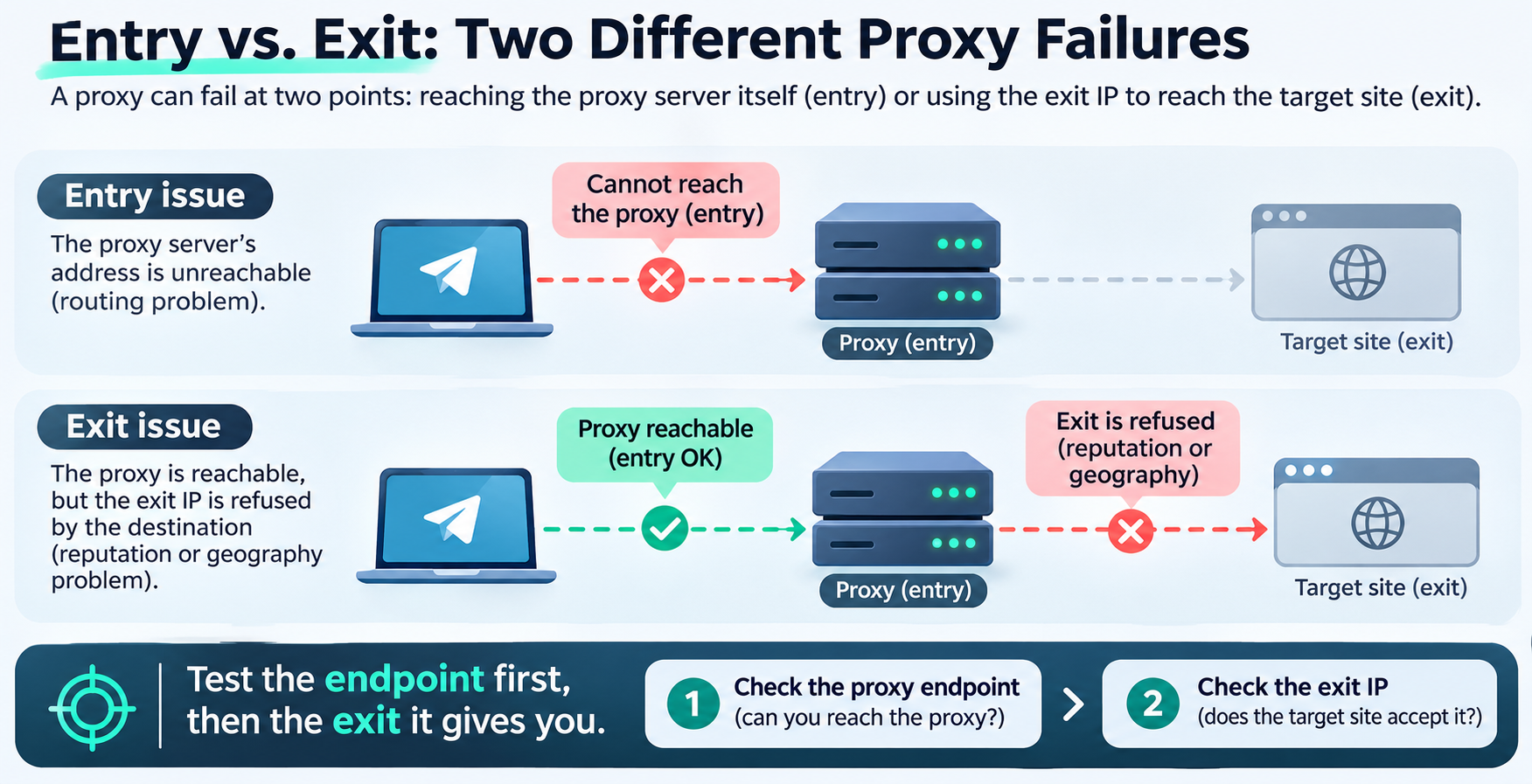
The last distinction is entry versus exit. The proxy server's own address can be unreachable, which is a routing problem, or reachable while the exit it hands you is refused by the destination, which is a reputation or geography problem. Test the endpoint first, then the exit it gives you.
What PuraRoute Offers When a Telegram Proxy Keeps Failing
Every path above lands in the same place: you need an endpoint that stays up for the period you actually use it, from an address you can look at before you pay.
Static residential proxies for accounts that stay on one address
Static residential capacity is priced by IP and by period rather than by traffic. The reference total for one IP on a 7-day plan is $2.25, and the 30-day figure appears in the console before you order rather than on the page. Traffic is unlimited, each address is dedicated, and stock can be checked before purchase, so you are not paying for a city that turns out to be unavailable.
For Telegram the appeal is narrow and specific: the same address each time the client reconnects. An account that signs in from one city on a plan that does not rotate does not present a new location to the platform every morning. City-level targeting is included, an IP whitelist means the client needs no credentials at all, and the main markets cover the US, UK, Germany, Spain, Japan and Brazil. The tier structure by IP count and period sits on the static residential proxy plans page.
Rotating residential proxies when an exit stops answering
Rotating residential traffic is priced by the gigabyte: 2GB at $2.99/GB, 10GB at $1.59/GB, 50GB at $1.33/GB, and 100GB at $1.19/GB, with each purchase valid for 30 days. Coverage runs to 195+ countries and regions, and city-level targeting is included rather than sold as an add-on.
Two session modes matter here. Rotating sessions change the address between requests; sticky sessions hold one address for a window, which is what keeps a login steady while you work. Both HTTP(S) and SOCKS5 are supported, concurrency is unlimited, and an IP whitelist takes the credential step out of the client. When one region's exit stops answering, moving country or city is a setting change, not a second purchase. The tiers are listed on the rotating residential proxy pricing page.
Matching the proxy type to the Telegram task
Four decisions cover most setups:
- An account that has to stay signed in, on one address, for weeks at a time: static residential.
- Checking whether a city's exit works at all before committing to a plan: rotating residential on a sticky window.
- Confirming what the exit looks like from outside: an IP lookup before you configure anything.
- Running several sessions side by side: one address per session, never one address shared across them.
The reasoning behind the first decision is worked through in static vs rotating proxies, which reduces it to a single question: whether the target remembers you between requests.
A proxy changes the address a request leaves from. It does not change how the account behaves, what the device looks like, or how the platform decides what to do with either.
Frequently Asked Questions About Telegram Proxy Not Working
Why is my Telegram proxy not working when other apps connect fine?
Because the proxy is configured per application, not per device. Other apps may be reading a system-level setting that Telegram ignores, or the reverse. Telegram Desktop has its own switch for the system proxy, and on mobile the entry lives inside Telegram rather than in the Wi-Fi configuration.
Can Telegram work without any proxy?
It can, in networks that reach Telegram's servers directly. Whether yours does depends on the network rather than the app, so the answer has to come from a test: turn the proxy off and see whether the client connects.
How do I tell an overloaded proxy from a blocked one?
An overloaded proxy connects and then crawls. A blocked one either never completes the handshake or drops it the moment authentication finishes. The timing separates them: a stall that recovers after a minute is load, a reset in the first two seconds is refusal.
Which proxy type holds up best in 2026?
There is no single winner. Static residential suits accounts that must keep one address. Rotating residential suits work where each request can come from somewhere else. The choice follows from whether the destination remembers you between requests, not from a ranking.
Does a proxy slow Telegram down?
It adds distance. Traffic leaves through the proxy's location instead of your own, so latency reflects that route plus whatever load the endpoint is carrying. A nearby dedicated address usually adds less than a distant shared one.
Conclusion
The question underneath all of this is whether the destination remembers you between requests. If it does, you need one address that persists, and a rotating setup will keep failing in the same place no matter how many endpoints you try. If it does not, a shared public endpoint will keep failing for a different reason: it belongs to everyone who found it.
Most cases of a Telegram proxy not working get fixed by reading the order backwards. People replace settings before testing whether the endpoint answers at all, and replace the endpoint before checking whether the app is even reading the setting. Test traffic first, then the protocol, then the address.
