
A Gmail login that has worked for two years suddenly asks for a phone number. Nothing about the account changed. What changed is the network address the request arrived from.
That is the real reason people use a proxy with Gmail. Not encryption, not invisibility. They need Google to see a stable and sensible location behind a session that already exists. Everything else in this guide follows from that one requirement.
Below: what a proxy does and does not change, where Gmail access typically breaks, the setup steps for Windows, macOS, Android and iOS, and the checks to run before you log into an account you care about.
Why Use a Proxy with Gmail?
Three situations justify it, and none of them is about hiding.
What a proxy actually changes in a Gmail session
A proxy replaces the IP address your request leaves from. That is the entire change.
Your browser still speaks TLS to Google. Your password still goes through the same login flow. Google's rules about what an account may do stay exactly where they were. If you were expecting a proxy to add a layer of encryption on top of Gmail, it does not. Gmail already encrypts the connection between your browser and Google's servers, and a proxy moves the exit address rather than strengthening that connection.
What you get is control over where the session appears to originate. In practice that means a session that keeps the same address across days, or one that arrives from a specific city when you need it to.

Keeping one login region for an account you use every day
Google treats login location as a signal. An account that has signed in from Manchester on weekday mornings for a year has a pattern, and another Manchester login does not stand out.
The problem is everything that moves that location without you noticing. Hotel Wi-Fi. A phone hotspot. A desk in another office. A VPN someone left running. Each one puts the session somewhere new, and Google answers with the screen you already know: a code sent to a backup phone, or a message saying the device could not be verified.
A static residential proxy pins that variable down. Same country, same city, same address, each time you open the inbox.
Running separate accounts for separate work
One person can legitimately hold several Gmail accounts. A work inbox, a personal one, an address for a side project. That is allowed, and none of it requires a proxy on its own.
What a proxy adds here is a separate exit address per account, so the sessions do not sit on top of each other. If you handle a client's inbox alongside your own, one address per account keeps the two from sharing a network identity.
The limit is worth stating plainly. A proxy does not make a prohibited pattern acceptable. If the accounts exist to manipulate something, changing an address does not fix that, and Google's enforcement targets the behaviour rather than the IP alone.
Where Gmail Access Usually Breaks
Most Gmail proxy failures reported as proxy failures are address failures. Three of them account for nearly everything.
| What it looks like | What is actually happening | Where to look |
|---|---|---|
| Login works, then a verification prompt appears every few days | The exit address is unstable and moves between sessions | Session type and rotation interval |
| Inbox loads, sending is restricted or a warning banner appears | The exit address carries a poor history from previous users | Address reputation and sharing model |
| One account gets challenged, then others on the same setup follow | Several accounts share one exit address | One address per account |
A shared exit IP that other people already burned
A rotating pool is shared by design. Some of the addresses in it have been used by other customers before you, and a few of those customers left marks behind. Abuse reports are public, and you can look them up before you commit to a provider: AbuseIPDB keeps a record tied to individual addresses.
For Gmail specifically, a heavily used address shows up as friction rather than a block. The inbox opens. Then a challenge appears. Then another one a few days later.
An IP that changes more often than your login pattern
A rotating proxy that swaps address mid-session breaks the illusion of a single continuous visit. Google issued a session token to one address; the next request arrives from another. The result is a logout, or a screen asking you to confirm it is really you.
If your use of a proxy with Gmail involves any kind of session you want to keep, the rotation interval matters more than the size of the pool. A sticky session is what buys you that interval. A static residential proxy removes the question by never changing address at all.
One exit IP behind several accounts
Accounts that share an address share a fate. One gets flagged, and the others inherit the pattern that caused it, because from Google's side they arrived from the same place at the same times.
This is the most common configuration error in small teams: one proxy subscription, one address, five inboxes. Separating them costs more and breaks fewer things.

How to Set Up a Proxy with Gmail on Windows
The system-level setting is the fastest route for anyone who wants to use a proxy with Gmail across the whole machine, and it is also the one with the most hidden limits. Read those limits before you start, because two of them explain most failed setups.
Configuring proxy settings in Windows network options
- Open Settings, then Network & internet, then Proxy.
- Under Manual proxy setup, select Set up next to Use a proxy server.
- Turn the toggle on, enter the address and port your provider gave you.
- Save, then open a browser and load a page that is not Gmail.
Two limitations are worth knowing before you blame the proxy.
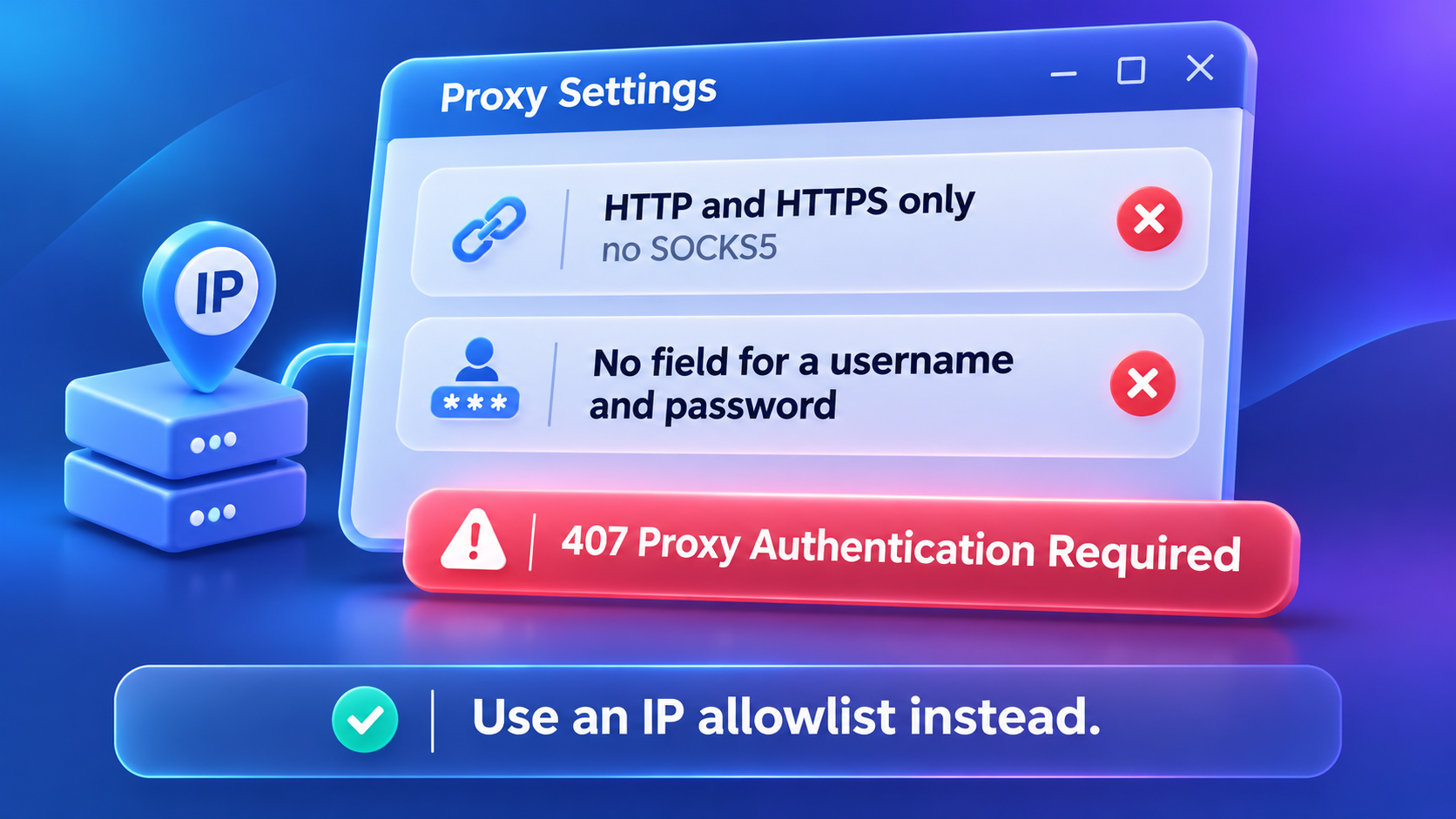
The Windows system proxy is HTTP and HTTPS only. It does not carry SOCKS5. If your provider issued a SOCKS5 endpoint, configure it inside the browser or client instead of in Windows settings.
The Windows system proxy has no field for a username and password. Authentication is not part of that dialog. Providers solve this either with an IP allowlist, where you register your own address so no credentials are needed, or by having you configure the proxy inside the application. This is where the 407 Proxy Authentication Required error comes from, and it is not a wrong password.
If you would rather keep the setting scoped to one browser than to the whole machine, the numbered steps for setting up residential proxies in Chrome cover the extension route.
Testing Gmail functionality after proxy setup
Test in this order. Each step isolates one thing, so a failure tells you where the problem is.
- Load a neutral site and confirm it opens. If this fails, the proxy itself is not working.
- Check the exit address on an IP lookup page. It should match what you ordered, in both country and city.
- Open Gmail without signing in. If the sign-in page loads, connectivity is fine.
- Sign in, then send one message to yourself and open one attachment.
- Leave the tab open for ten minutes and reload. A session that dies on idle is usually a rotation problem, not a proxy problem.
Do not start with step four. Signing in first, then discovering the proxy does not work, is the pattern that gets accounts challenged.
Troubleshooting common errors during setup
| Error | Likely cause | First thing to check |
|---|---|---|
| 407 Proxy Authentication Required | Credentials missing or rejected | Whether the endpoint needs auth at all, or an IP allowlist instead |
| Connection timed out | Wrong port, or the endpoint is HTTP while the client is set to SOCKS5 | Port and protocol against the provider's connection details |
| Page loads, Gmail shows an unusual activity warning | Proxy works, address looks unfamiliar to Google | Whether the address matches the account's usual region |
| Everything works, then stops after a day | Time-limited plan expired or traffic ran out | Remaining balance and expiry in the provider console |
Your provider's integration docs list the connection strings per protocol, which is faster than guessing the format.
How to Set Up a Proxy with Gmail on macOS
macOS handles this better than Windows in one specific way: the system panel will take a username and password.
Accessing proxy settings in macOS system preferences
- Open System Settings, then Network.
- Select the active connection, such as Wi-Fi, then open Details.
- Go to Proxies and turn on Web Proxy (HTTP) or Secure Web Proxy (HTTPS).
- Enter the server and port, then add the username and password if the provider issued them.
- Apply, then confirm the setting survived by reopening the panel.
macOS also exposes a SOCKS Proxy entry here, unlike Windows. If your provider gave you a SOCKS5 endpoint, this is where it goes.
Ensuring Gmail compatibility with macOS proxies
Safari follows the system proxy setting without extra work. Chrome on macOS also reads the system proxy by default, which surprises people who expect it to behave like a standalone browser. Firefox defaults to the system setting as well but keeps its own manual proxy settings, and once you touch that panel, Firefox stops following the system.
The check that matters is not which browser you configured. It is whether the address Google sees is the one you ordered. Open an IP lookup in the browser you will actually use for Gmail and compare the result to your order.
Steps to disable or switch proxies on macOS
Turn the proxy off the same way you turned it on, then verify. A surprising number of "the proxy is broken" reports are actually a setting that was never disabled, still routing traffic from an application the user forgot about.
- Return to Network, Details, Proxies.
- Turn off every protocol you enabled, not just the one you remember.
- Apply, then reload an IP lookup page and confirm the original address is back.
Using a Proxy with Gmail on Mobile Devices
Mobile is where expectations separate from reality. The setting exists on both platforms, it is narrower than most people assume, and the app you care about may ignore it.
Setting up a proxy on Android for Gmail access
- Open Wi-Fi settings and long-press the network you are connected to.
- Choose Modify network, then Advanced options.
- Set Proxy to Manual, then enter the hostname and port.
- Save and reconnect to the network.
Two constraints matter. The setting is attached to that one Wi-Fi network, so it disappears the moment you switch to cellular data. And the Android Wi-Fi proxy dialog has no username and password fields, so authenticated endpoints need an IP allowlist instead.
Whether the Gmail app uses the proxy depends on the app's networking stack. Apps built on the standard HTTP stack generally follow the Wi-Fi proxy; an app that manages its own connections may not. Test before relying on it.
Configuring proxy settings on iOS devices
- Open Settings, then Wi-Fi, and tap the network's info button.
- Scroll to Configure Proxy and select Manual.
- Enter the server, port, and credentials if required.
- Save, then reopen the network panel to confirm the setting stuck.
On iOS the proxy is bound to the Wi-Fi configuration, which has two consequences. It applies only while that network is connected, and app behaviour varies. Some apps route through the system setting, others use their own networking layer. Gmail's iOS app is not guaranteed to follow the Wi-Fi proxy, so verify with an IP lookup in a browser first and treat the app as a separate question.
If you need every app on the device to leave through one address, that usually has to be handled one level up, at the router or the hotspot, rather than in the phone's settings.
Common mobile proxy issues and how to fix them
- Proxy silently stops working on cellular. Expected. The setting belongs to the Wi-Fi network.
- Configuration disappears after rejoining a network. Some Android builds drop the proxy field when the network is forgotten and re-added. Re-enter it.
- No authentication prompt appears. Neither mobile platform's Wi-Fi proxy dialog supports credentials on Android, and iOS supports them but only in the manual panel. Use an allowlist or switch to a desktop setup for authenticated endpoints.
- Everything loads except Gmail. The proxy is fine and Gmail is objecting to the address. That is the next section, not a mobile problem.
How to Choose a Safe Gmail Proxy Service
The provider decides more about what it is like to use a proxy with Gmail than the configuration does.
Key factors to evaluate when selecting a proxy provider
- Address origin. Residential and ISP addresses come from consumer connections; datacenter addresses come from server ranges. The difference in how a target treats them is significant, and the gap between a residential proxy and a datacenter proxy is worth reading before you buy.
- Dedicated or shared. A dedicated address is yours alone. A shared one carries other people's history.
- Billing unit. Per gigabyte suits short sessions. Per IP suits an address you hold for weeks.
- Location granularity. Country is the minimum. City and ASN matter if you are trying to match an account's existing pattern.
- Authentication method. Username and password, IP allowlist, or both. On Windows and Android the allowlist is often the only option that works at the system level.
- Session control. Whether you can hold one address for a defined window rather than rotating per request.
Static residential proxies meet most of that list without trade-offs, which is why they suit logins that are repeated every day.
Comparing free and paid Gmail proxy options
Free proxies are not free. The cost is paid in ways that are harder to measure.
A free pool of residential proxies is heavily shared, usually unauthenticated, and rarely documented. The addresses in it have been used by many people for many purposes, and for a Gmail login the relevant question is not speed but history. An address with a long trail of abuse reports will trigger verification regardless of how fast it is.
Paid services differ mainly in what you can control: which country and city you get, whether the address is yours alone, how long you can hold a session, and what happens when something breaks. Whether that is worth the cost depends on what the account is worth to you.
Spotting providers you should not use
Most of the warning signs are visible before you pay.
- A promise that you will not be blocked. No provider controls how Google evaluates a login. A provider making that promise is either guessing or lying.
- No information about where addresses come from. Without an origin, you cannot reason about history.
- No authentication at all, and no allowlist either. An open endpoint is an endpoint anyone can find.
- A request to install a root certificate. This is the one to refuse outright. Installing a certificate authority so the proxy can inspect HTTPS traffic puts the proxy in the middle of your connection, which for a Gmail login means the operator can read the session. Legitimate proxy services do not need this, because they forward encrypted traffic without opening it.
That last point is the only genuinely security-related item in this guide, and it is about the provider rather than the proxy.
Testing and Verifying Your Gmail Proxy Setup
A working proxy and a working Gmail session are two separate results. Before you use a proxy with Gmail for an account that matters, verify them separately.
How to confirm your proxy is active and working
Open an IP lookup page and compare the reported address to the one you ordered. Then check the country and city, and then check them again in a second browser. A proxy that appears active in one browser and not another usually means one of them has its own proxy settings overriding the system.
If you want the longer version of that check, including why an address can look correct in one database and wrong in another, the steps to check your public IP address cover the comparison properly.
Tools to check Gmail connectivity through a proxy
The useful sequence is from general to specific, because each step narrows the cause.
- A neutral site. Confirms the proxy carries traffic at all.
- An IP lookup. Confirms the exit location.
- The Gmail sign-in page, without logging in. Confirms Google is reachable.
- A signed-in session. Confirms the account accepts the address.
For step two, IPinfo reports the address, the country and the organisation behind it. The organisation field is often more informative than the country, because it tells you whether the address is registered to a consumer ISP or a hosting provider.
If step one passes and step three fails, you are not debugging a proxy. You are debugging how Google sees that address.
Identifying and resolving Gmail proxy errors
A 407 is a proxy error. A 403 from Gmail is not. Treating them as the same thing is why people cycle through endpoints for hours without fixing anything.
- 407: the proxy rejected your request. Credentials, allowlist, or the endpoint itself.
- 403 from Google: the proxy worked and Google refused. Check whether the address matches the account's usual region, and whether the account itself is in good standing.
- Sign-in loop with no error: usually a cookie or session problem caused by the address changing mid-session. Hold one address for the whole session.
- Slow but working: latency in the route, not a configuration fault. Compare the same request without the proxy.
If the account is challenged but the proxy tests clean, the account is the subject, not the network. Review recent activity on it before changing any settings.
Choosing a Proxy with Gmail Workloads in Mind
The two Gmail patterns map onto two proxy types, and PuraRoute sells both from one account, so the choice does not force a provider switch later. Most people who use a proxy with Gmail end up needing both types eventually.
Static residential proxies for accounts you log into daily
A daily inbox wants an address that does not move. Static residential proxies give you a dedicated address for the full term at a fixed price, on 7-day and 30-day plans starting at $2.25 per IP. Traffic is unmetered, so leaving the tab open costs nothing. Availability can be checked before purchase, so you confirm the country and city exist rather than finding out after checkout. Coverage centres on major markets including the US, UK, Germany, Spain, Japan and Brazil.
For a login you perform most mornings, this is the type that removes the variable rather than managing it.
Rotating residential proxies for short regional checks
The other pattern is occasional and location-dependent: checking what a message looks like to a recipient in another market, or confirming a signup flow from the region it is meant for. Residential proxies cover 195+ countries and bill by traffic, from $2.99 per GB at the 2 GB tier down to $1.19 per GB at 100 GB. Traffic stays valid for 30 days.
The setting that matters here is the session mode. Rotating per request spreads load; a sticky session holds one address for a defined window, which is what a Gmail login needs if you plan to stay signed in. Sticky sessions are configurable rather than fixed, so the window can match the length of the task.
One boundary worth stating. A proxy changes the address a request leaves from. It does not change account behaviour, the device the session runs on, or how Google evaluates either of those. Those remain yours to manage, and no proxy plan covers them.
Frequently Asked Questions About Using a Proxy with Gmail
Can Gmail block a proxy or flag the account?
Google does not block proxies as a category. It evaluates the login: address, location history, device, and behaviour. An address that looks inconsistent with the account's past will produce a verification step even when the proxy is functioning correctly. Repeated challenges usually point at an unstable address rather than at the proxy being blocked. Static residential proxies exist to remove that instability, and it is worth fixing before you change anything else on the account.
Is it safe to use a proxy with Gmail on a work computer?
It depends on two things, and neither is technical. Whether your employer permits it, and whether the proxy provider can see your traffic. The second has a clear test: if the setup asks you to install a root certificate so HTTPS can be inspected, do not proceed on a work machine. A provider that only forwards encrypted traffic does not need one.
Do Gmail proxies slow down sending and receiving?
They add latency, not delay. A request travels to the proxy, then to Google, and the reply comes back the same way, so the round trip grows by the distance between you and the exit. Well-maintained pools with nearby exits are barely noticeable. Distant or overloaded endpoints are not, and heavy attachments show it first.
Can I use a proxy with a Google Workspace account?
Technically yes, and administratively it is a different question. Workspace accounts are managed by an administrator who can see sign-in activity and may enforce policies about where sessions originate. Check with whoever administers the domain before pointing a managed account at a proxy, because the challenge you receive may come from your own organisation rather than from Google.
What should I do if Gmail stops working with my proxy?
Separate the two failures first. If other sites fail too, the proxy is down: check the endpoint, credentials, and remaining traffic. If other sites load and only Gmail objects, the proxy is working and the address is the issue. Try a different location in the same country before changing anything else, and check the account's recent activity before concluding the network is at fault.
Conclusion
Start with the question that decides the rest: does this Gmail account need to look the same every time you open it, or does it need to look local to somewhere new?
If it needs to look the same, you want one fixed address and no rotation during the session. If it needs to look local elsewhere, you want rotation with a sticky session long enough to finish the task. Getting that backwards is how people end up buying traffic when they needed an address, or an address when they needed coverage.
Configuration comes after that answer, not before it. The settings on Windows, macOS and mobile are all reversible, and none of them will fix an account that is being challenged for its behaviour rather than its network. That is the whole of how to use a proxy with Gmail: decide which address the account needs, then go and configure it.
