
A website keeps timing out, yet other sites load normally, and you wonder whether IPv6 causes the problem. Before changing network settings, you need to know how to disable ipv6 on the right connection and how to restore it if the test changes nothing.
Turning off IPv6 can help isolate a connection problem, but it does not fix every timeout or DNS error. Some networks and services rely on IPv6, so treat the change as a troubleshooting step rather than routine maintenance.
The practical approach starts with identifying your active network adapter and recording its current settings. From there, you can turn off IPv6 on Windows, disable IPv6 on Mac, or adjust the relevant Linux connection. Router settings need separate attention because they can affect other devices. You will also learn how to check the result and undo each change without confusing a device setting with a network-wide change.
Start by deciding whether you need to change one device or the router, then check what your network requires before touching either setting.
Should You Disable IPv6, or Test a Smaller Change First?

Test a smaller change when you can reproduce a specific connection problem. Turning off IPv6 is a reversible diagnostic step, not an automatic speed, privacy, or security upgrade. Start with the affected connection rather than changing the whole network.
Identify the problem you want the change to test
Record the application, active connection, exact error, and steps that trigger it; for example, note whether one website times out only while your laptop uses Wi-Fi. A timeout alone proves neither an IPv6 fault nor an IP restriction, so repeat the same task after the change and restore the original setting if it makes no difference; even an improvement calls for further diagnosis before you make the change permanent.
Choose between one adapter, one device, and the router
- Identify the active adapter, such as Wi-Fi or Ethernet, and limit the test to that connection.
- Check whether device-wide instructions also affect other adapters; preferring IPv4 does not disable IPv6.
- Leave the router unchanged while a single-device test can answer your question; router changes can disrupt other devices.
Save a rollback path before changing network settings
Changing the connection that carries a remote session can cut off your access before you can undo it.
- Save screenshots of existing settings and confirm that you have administrator access.
- Ask your network administrator before changing a managed device; required services may rely on IPv6.
- Keep rollback steps offline and arrange local access before changing a remotely managed connection.
On Windows 11 or Windows 10, begin by locating that adapter.
How Do You Turn Off IPv6 on Windows 11 or Windows 10?
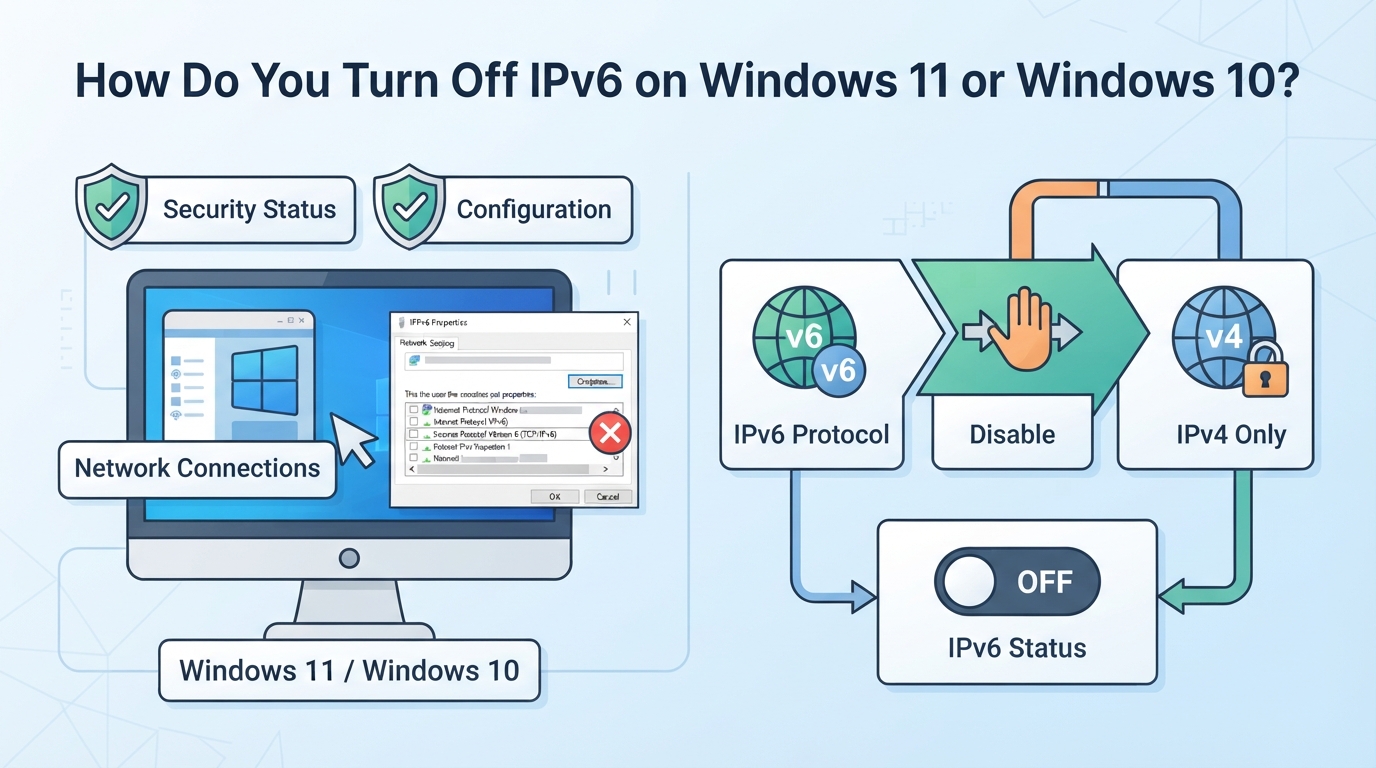
For that device-level test, open your active adapter’s properties, clear the Internet Protocol Version 6 (TCP/IPv6) checkbox, and save. This Windows 11 and Windows 10 procedure changes one connection’s IPv6 binding; it does not disable every Windows IPv6 component.
Find the active Wi-Fi or Ethernet adapter
- Press Windows + R, enter
ncpa.cpl, and press Enter. This opens Network Connections on either Windows version without relying on changing Settings menus. - Find the connected Wi-Fi or Ethernet adapter. Match its network name with your current connection; skip entries marked “Disconnected.” If both connections are active, confirm which one carries the affected traffic before proceeding.
- Right-click that adapter and select Properties. If Windows blocks access or requests credentials you lack, ask the device administrator. Managed devices may restrict these changes.
Change the adapter's IPv6 binding and save the setting
- Find Internet Protocol Version 6 (TCP/IPv6) in the connection’s item list. Record whether its checkbox is selected. If it is already clear, this adapter already has IPv6 unbound; clearing another adapter will not extend this test.
- Clear the checkbox, then click OK. Approve an administrator prompt if Windows presents one and you have permission.
- Reopen the same adapter’s Properties and confirm the checkbox remains clear. Retry the affected application. If connectivity breaks, restore the original checkbox state and save.
Clearing this checkbox unbinds IPv6 from the selected adapter, not from Windows as a whole. Other adapters can still use IPv6.
Know when advanced Windows configuration is a separate task
- Keep this test at adapter level. If the checkbox stays clear but the problem remains, investigate the application’s route and other active adapters instead of assuming Windows ignored the setting.
- Define any broader goal before changing more settings. IPv4 preference changes address selection while leaving IPv6 available. System-level IPv6 configuration has a wider scope. Neither belongs in this checkbox procedure.
- Leave registry changes out of routine troubleshooting. Proceed only with instructions that establish the exact scope, dependencies, and rollback. Windows components may expect IPv6, so a broader change needs a separate plan.
On a Mac, the connection controls and available IPv6 options differ.
How Do You Turn Off IPv6 on a Mac?

On a Mac, change IPv6 for the network service carrying your connection, such as Wi-Fi or Ethernet. Like Windows adapter settings, this change has a specific scope. The available controls vary by macOS release, and some interfaces do not offer an Off option.
Open the settings for the network service in use
- Open System Settings > Network, then select the connected service. For Wi-Fi, open Details for the connected network, then TCP/IP. Older releases use System Preferences > Network > Advanced > TCP/IP. If the path differs, look for TCP/IP within that service’s settings.
- Confirm you selected the intended connection. Wi-Fi, built-in Ethernet, and a USB Ethernet adapter can have separate settings. Changing Wi-Fi will not change Ethernet.
- Record Configure IPv6 and any manual address, router, or prefix values. Keep these details so you can restore the original configuration.
Check the available IPv6 configuration choices
-
Open Configure IPv6 and inspect the choices. Select Off only if macOS exposes it. Link-local only keeps IPv6 active on the local network; it does not fully disable IPv6.
-
If Off is missing and you need complete disablement for that service, use Terminal. Before proceeding, confirm the original setting: the undo command below restores Automatic only. For an original manual configuration, restore the recorded values through TCP/IP settings.
-
List the service names:
networksetup -listallnetworkservicesUse the exact intended name, including spaces. For a service named Wi-Fi, run:
sudo networksetup -setv6off "Wi-Fi"To restore an originally automatic configuration:
sudo networksetup -setv6automatic "Wi-Fi"Replace
"Wi-Fi"in both commands if your service has another name. If Terminal reports an unrecognized service, check the list rather than guessing an interface identifier such asen0.
Apply the change without altering unrelated services
-
For a settings-panel change, click OK, Done, or Apply as your release requires. Expect a possible connection interruption. Avoid making this change through a remote connection unless you have another way back in.
-
Leave other services unchanged. Retry the affected task through the intended connection; switching to Ethernet would test a different path.
-
If connectivity breaks, restore the recorded setting. For the Terminal method, inspect the service with:
networksetup -getinfo "Wi-Fi"Check its IPv6 status rather than treating a saved setting as proof of a working connection.
On Linux, the next distinction is where to save the change so it survives a reboot.
How Do You Disable IPv6 on Linux Without Losing the Change After Reboot?
Like macOS, Linux needs a change tied to the intended connection. For persistence, change the configuration that manages that connection. A runtime kernel setting alone may disappear after reboot, and a network manager may overwrite it sooner.
Identify the interface and its network manager
- Run
cat /etc/os-releaseto identify the distribution, thenip route show defaultto find the interface carrying the IPv4 default route. If several appear, confirm which carries the affected traffic. - Check the configuration owner. For NetworkManager, run
nmcli connection show --active. Otherwise, inspect the distribution’s network setup for systemd-networkd, Netplan, or another manager. An installed service does not prove it manages this interface.
Choose a temporary test or a persistent configuration
- For a temporary test on an interface named
eth0, record the output of:
Replacesysctl net.ipv6.conf.eth0.disable_ipv6 sudo sysctl -w net.ipv6.conf.eth0.disable_ipv6=1eth0with the actual interface. Check the value again; reboot or network-management events may undo it. Restore the recorded value to reverse this test. - If NetworkManager owns the connection, record its current setting:
Replacenmcli connection show "PROFILE" sudo nmcli connection modify "PROFILE" ipv6.method disabledPROFILEwith its actual name. This saves the profile change, but activation must apply it. If the command rejectsdisabled, check your installed version’s documentation rather than substitutingignore. - For another manager, use its documented persistent configuration. Do not layer profile edits, generated files, and sysctl rules for the same change.
Prepare for reconnection and rollback
- Save the original profile or configuration values. Arrange console access before reactivating a remote connection; reconnection can drop SSH.
- Reactivate the affected profile locally, then reboot when safe. Check both the saved setting and interface addresses. If IPv6 returns, investigate which manager reapplied it.
- To roll back, restore the recorded values and reactivate. Remove only your specific edits.
These changes affect the Linux host. Router-level settings have a wider scope.
Can You Disable IPv6 on the Router Instead?
Beyond device settings, your router may let you turn off IPv6 for devices sharing its internet connection. That can affect several devices at once, but it does not necessarily stop their local IPv6 traffic or affect connections through other networks.
Check whether your router exposes an IPv6 control
Check the exact router model and firmware version, then consult its manual. Providers may hide or lock controls on equipment they manage.
| What you find | What to do |
|---|---|
| A documented IPv6 control | Confirm whether it controls the internet connection, local network, or both. |
| Separate internet and local-network controls | Read each setting's description before changing it. |
| No IPv6 control | Ask the provider or manufacturer whether your firmware supports the change. |
Table reference: use your model's manual and your provider's instructions; menu names vary.
Do not assume that instructions for another router apply to yours.
Understand which connections the setting affects
WAN means the internet-facing connection; LAN means your local network. Disabling WAN IPv6 may stop IPv6 internet access through that router, while devices retain local IPv6 addresses, including link-local addresses for nearby communication. The change can affect other household or office users without changing each device's own settings.
Save the original configuration before applying changes
Record the existing settings and export a configuration backup if your router supports it. Schedule a possible connection interruption, avoid a factory reset as a routine troubleshooting step, and keep the previous values ready so you can verify the result and restore them if needed.
How Can You Verify the Change and Re-enable IPv6?
After a router or device change, verify the intended interface, then repeat the task that failed. An IPv4 web response alone does not prove you disabled IPv6 everywhere. Restore the saved configuration if the test provides no useful improvement.
Check interface settings and connectivity separately
Inspect the adapter or network service you changed and confirm its IPv6 setting matches your intended change; if results conflict, check other active connections, including Ethernet and Wi-Fi, because traffic may leave through another interface. A local address beginning with fe80: supports communication on that local network segment and does not establish internet IPv6 access, while a website showing an IPv4 address only identifies the connection that reached that website.
Repeat the original task under comparable conditions
- Repeat the same request in the same application and network. Keep other settings unchanged, and record whether the original error returns.
- Read the error details: failure to resolve a hostname points to DNS lookup trouble; a connection failure happens at a different stage.
- Record timeouts and HTTP 429 responses accurately. Neither proves an IP ban, and success through another route does not establish one either.
Restore the saved setting and check again
If the symptom stays the same, undo the test rather than leaving an unexplained configuration change in place.
- Restore the recorded setting on the exact adapter, macOS service, Linux profile, or router you changed.
- Remove any persistent override you added. Changing only the running state can let that override return after a restart.
- Reconnect if required, then check normal connectivity and repeat the original task. If you changed persistent settings, verify them again after a reboot.
If the remaining issue concerns traffic through a configured proxy, check that application's routing separately from the device's IPv6 settings.
What If You Are Disabling IPv6 Because a PuraRoute App Shows an Unexpected IP?
If your real goal is to send one application's traffic through PuraRoute, verify that application's proxy settings before changing IPv6 across the device. PuraRoute supplies a proxy connection; configuring that connection and disabling an operating-system protocol are separate changes.
Check the application's route before changing the whole device
Match the host, port, credentials, and HTTP(S) or SOCKS5 setting to the connection details generated in your PuraRoute console. Then check the observed exit address from that same application, rather than from a different browser that may use another route. If the application has a proxy test, save its result along with the original connection error. Confirm the client's and endpoint's documented IPv4/IPv6 support instead of inferring it from one successful request. A working proxy request does not establish that IPv6 is disabled or that every application uses the proxy; keep the rollback and interface checks above as a separate test.
Frequently Asked Questions About how to disable ipv6
Can I disable IPv6 on an iPhone?
There is no universal iPhone switch for turning off IPv6 across all connections. If you’re checking how to disable ipv6, first identify whether you use Wi-Fi or cellular data. Available controls vary by connection and device-management setup. Router settings may affect that router’s Wi-Fi network, but they do not control your iPhone’s cellular connection.
Can I disable IPv6 for just one browser?
Browser-specific connection or DNS settings are not the same as disabling IPv6 in your operating system. A browser may change how it resolves names or connects without affecting other apps. Check its current documentation for supported controls rather than using undocumented flags. Test browser traffic separately; a browser-only change does not establish that the whole device uses IPv4.
Does using a public IPv4 DNS server disable IPv6?
No. An IPv4 DNS server address tells your device how to reach that resolver; it does not turn off IPv6. The resolver can still return AAAA records, which contain IPv6 addresses. Using a public resolver also does not, by itself, encrypt DNS queries or force them through a particular network route.
Does disabling IPv6 change my public IPv4 address?
No, not inherently. Disabling IPv6 changes which network protocol your device can use, not how your provider or network assigns its public IPv4 address. If you are learning how to disable ipv6 to obtain a new address, treat those as separate tasks. Compare your public IPv4 address before and after rather than expecting it to change.
Do virtual machines and containers inherit the host’s IPv6 setting?
Not necessarily. A virtual machine may use a bridged adapter or a separate virtual network, while containers may use host networking or their own network configuration. Changing one host adapter does not prove that every guest has stopped using IPv6. Check the guest’s addresses and routes, then test connectivity from inside each affected virtual machine or container.
After changing your IPv6 settings, test the connection that was failing before making further changes. If the issue persists, restore the previous setting and continue troubleshooting rather than leaving IPv6 disabled without a clear benefit.
Try Puraroute Now
