Account Managerment
Account Managerment
How to Enable Two-Factor Authentication
Learn how to set up two-factor authentication for your PuraRoute account.
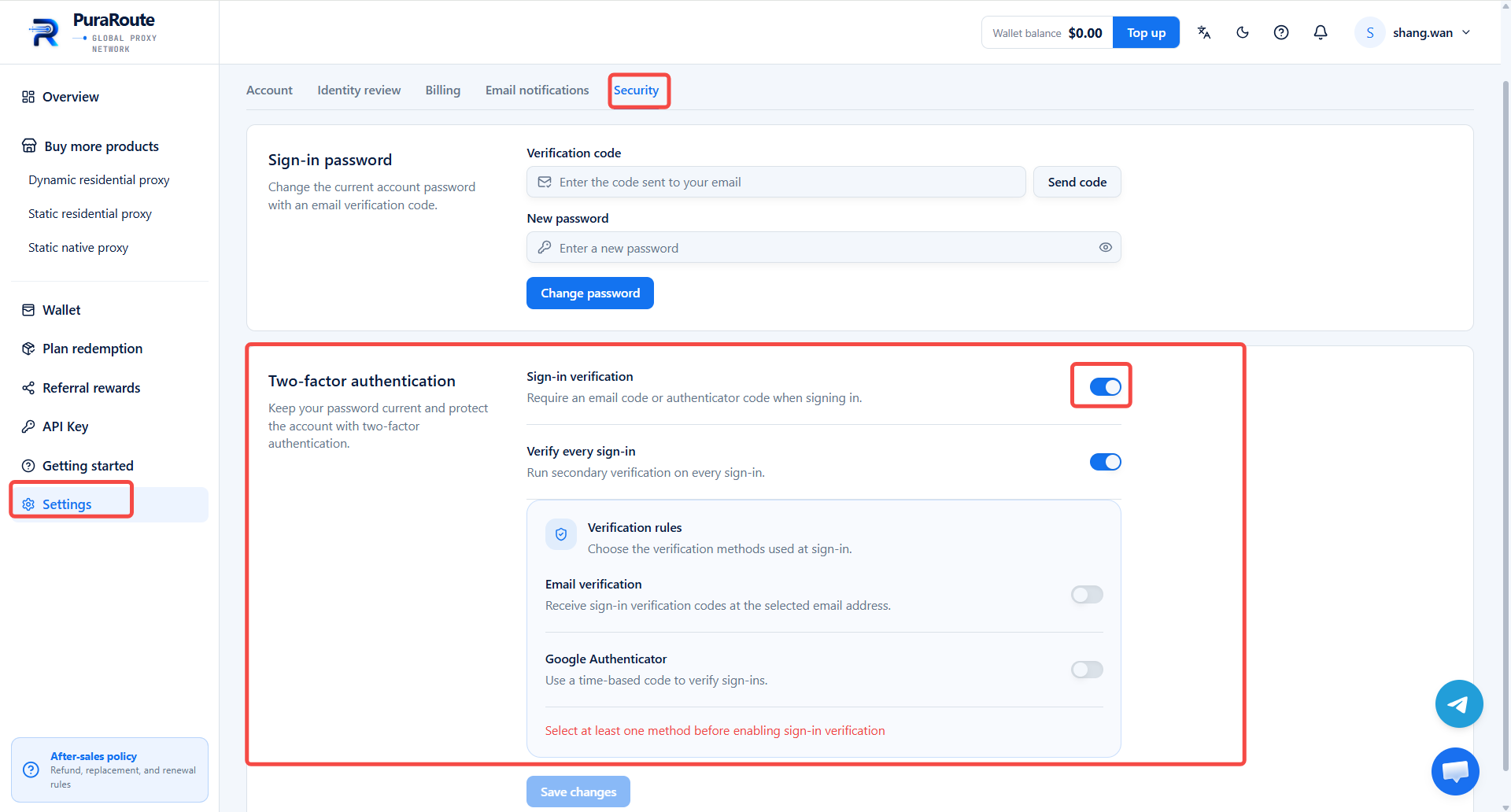
1. Visit and log in to your PuraRoute account.
-
Locate Settings in the left sidebar menu.
-
Navigate to Login Security > Two-Factor Authentication, then toggle on the login two‑step verification switch.
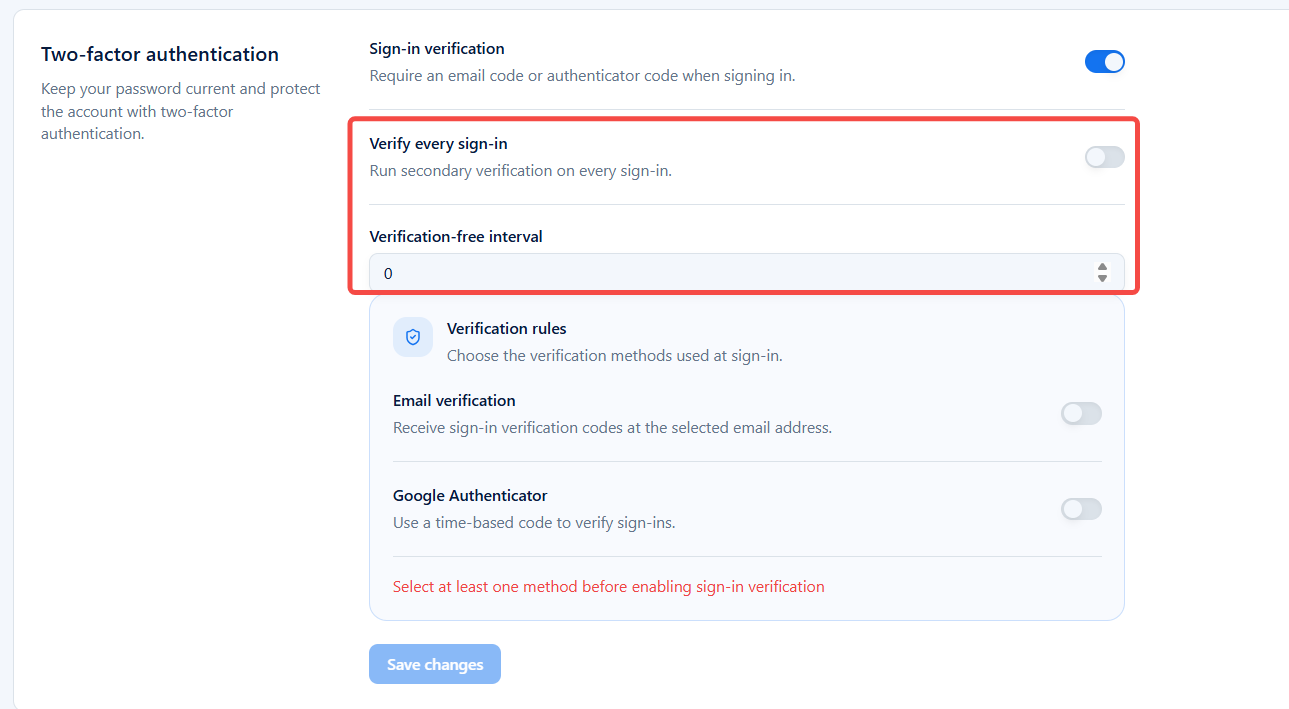
4. Set the verification exemption interval
If you require two‑step verification on every login, enable the Verify every sign in toggle. If you wish to trigger two‑step verification periodically instead, turn off this toggle and configure your preferred verification interval.
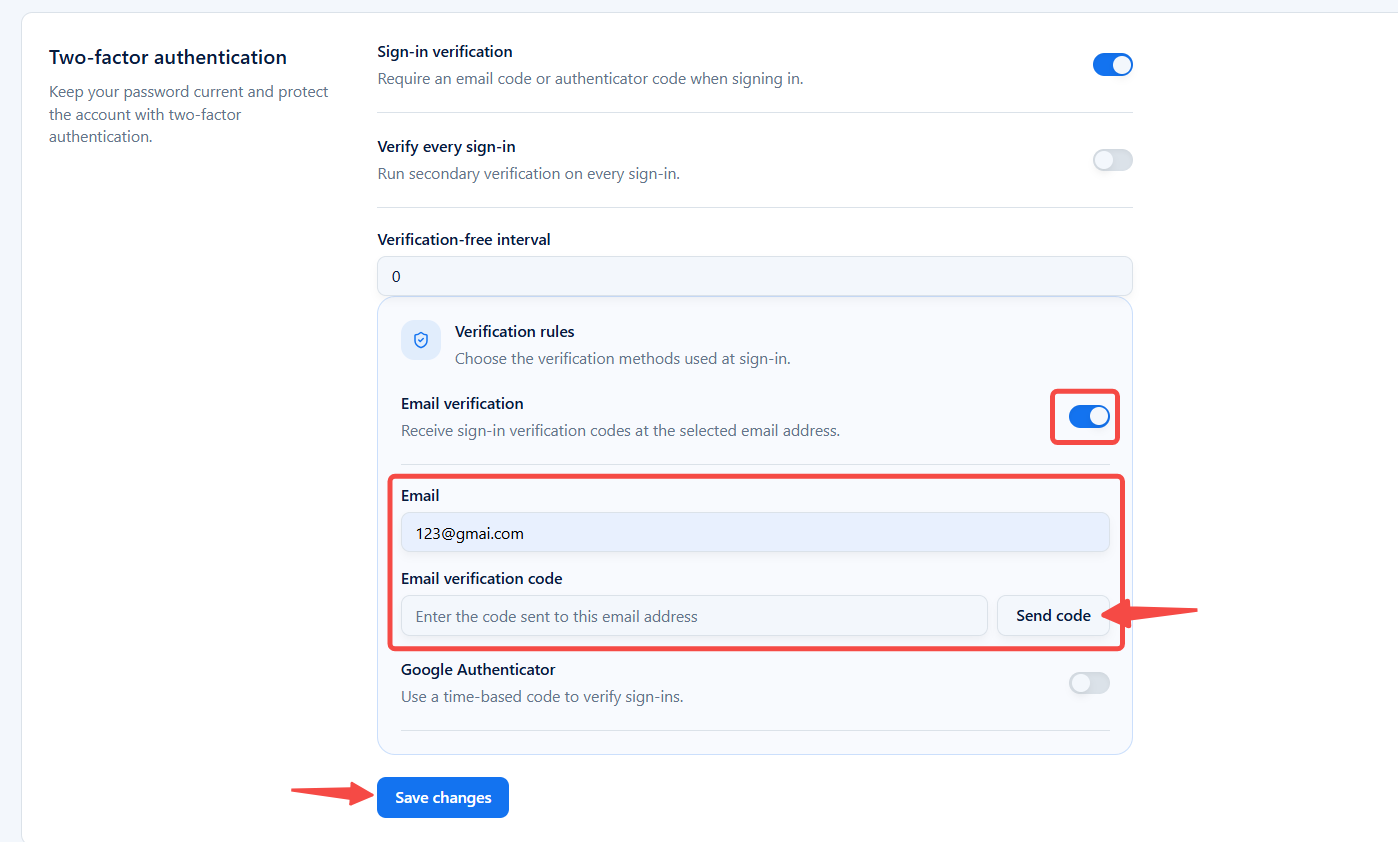
5. Select your verification method Email verification and Google Authenticator are supported.
- Email Verification: Toggle on Email verification, enter your verification email address, and click Send code. Enter the code received in your email into the designated field, then click Save changes.
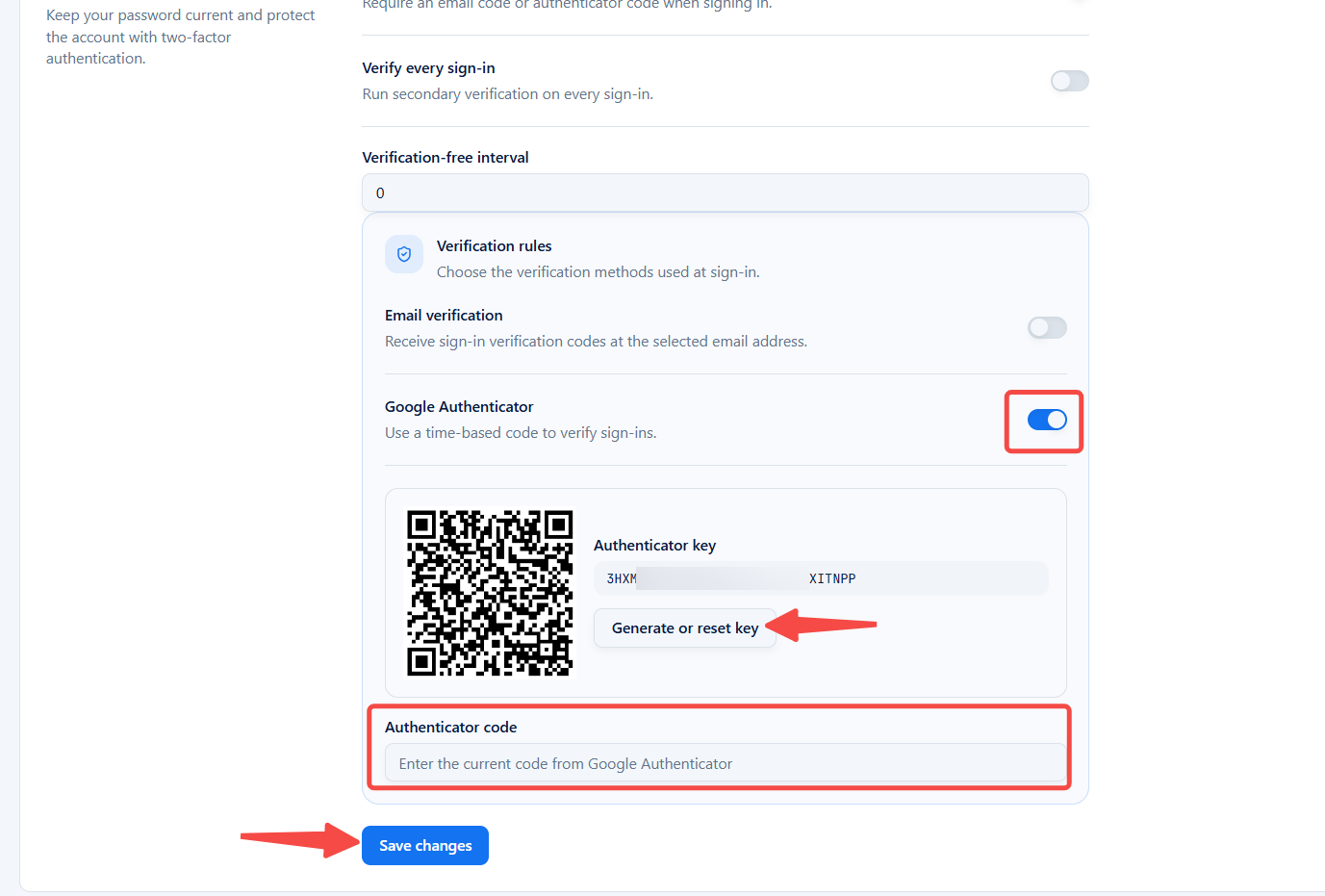
- Google Authenticator: Toggle on Google Authenticator. Your unique authenticator secret key will be generated. Copy the Authenticator key, go to 2FA generation tool to generate the verification code, enter the code in the corresponding field, and click Save changes. You may regenerate your authenticator key at any time here.