How to Use PuraRoute with Vision
Guide for beginners on how to quickly configure PuraRoute proxies into Vision.
After you complete your RuraRoute Proxy purchase, you may directly copy your proxy details and configure them for use within the Vision browser.
Operation Guide
I. Configure PuraRoute Proxies into Vision
1. Access the Proxies list
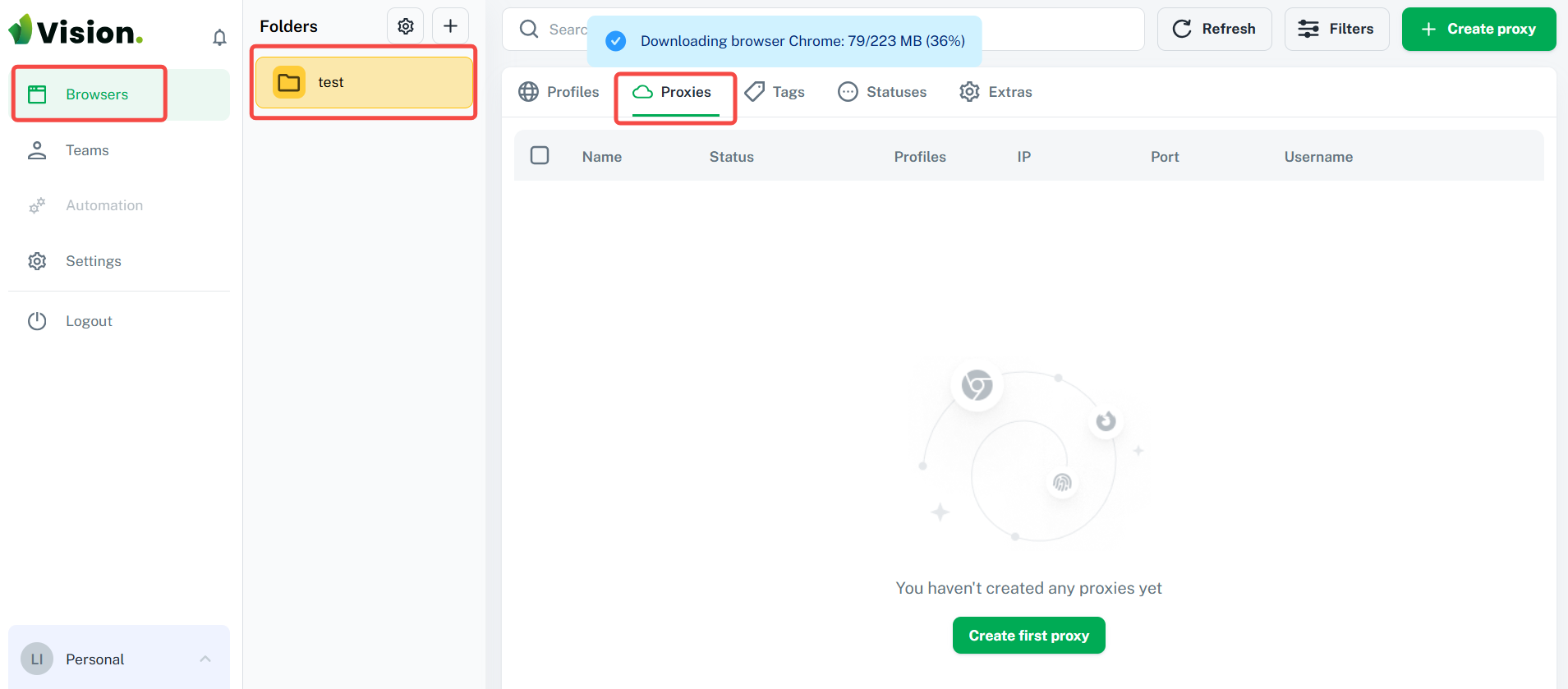
Open and log in to Vision, locate [Browsers] on the left‑hand dashboard,select your Folders, enter [Proxies] page and click [+Create proxy].
2. Fill in proxy information
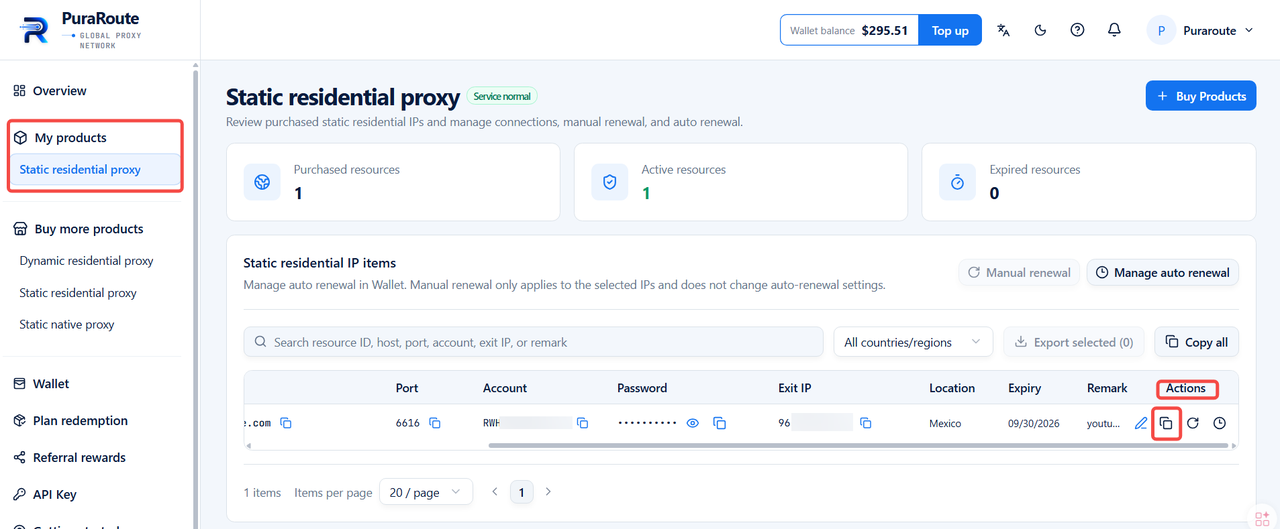
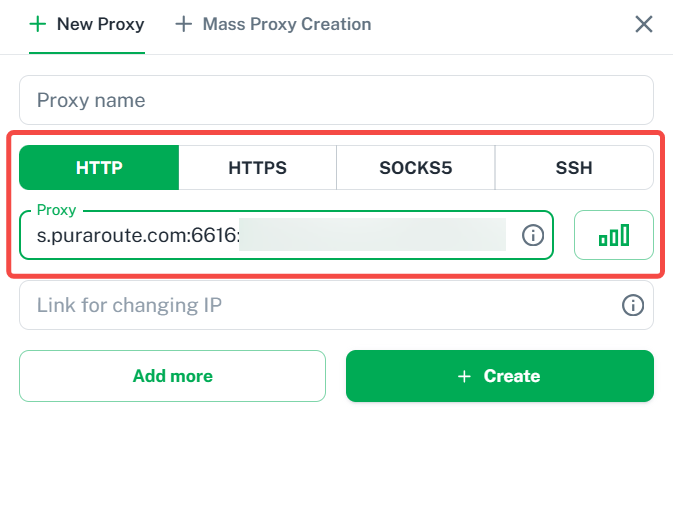
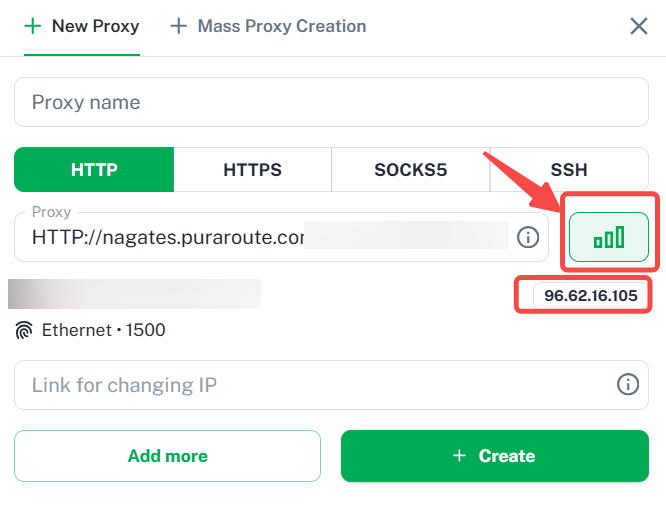
Select the proxy type, then enter the Proxy host, Port, Account and Password copied from PuraRoute Proxy into the corresponding fields.
3. Proxy detection
Click Proxy checking icon to verify whether the proxy connects successfully. Upon successful connection, click the [+Create] button to finalize proxy configuration.
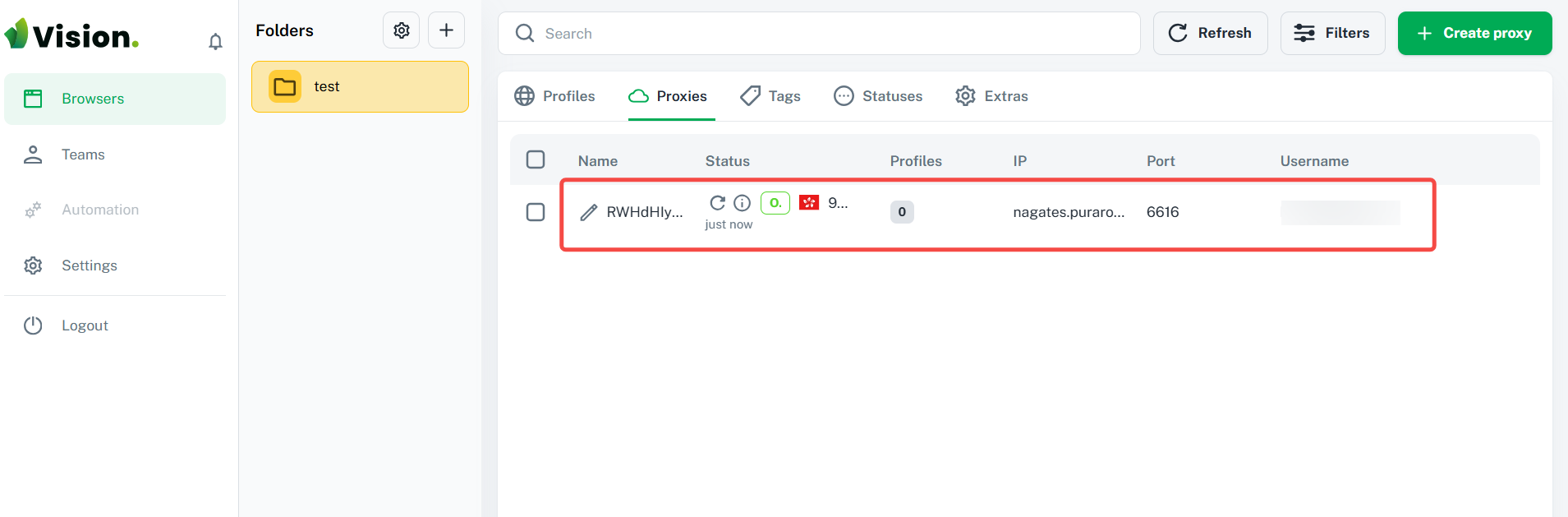
After adding the proxy, you can view it in the Proxies page.